Files (all documents)
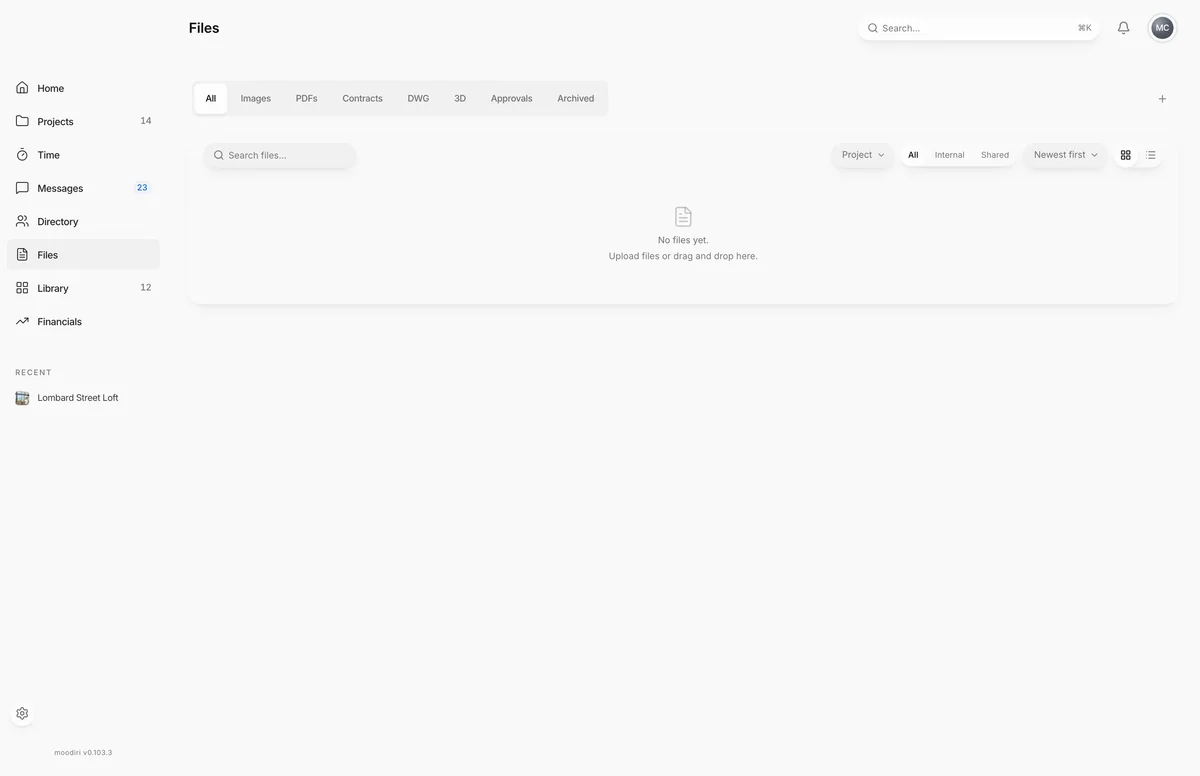
Files holds every document across your firm's projects: drawings, contracts, images, PDFs and 3D files, with search, filters, and archive and restore.
- 1Upload file
- 2Search
Files is your firm's document library across every project. Floor plans, contracts, renderings and spec PDFs usually end up spread across email and shared drives; here they sit in one place, filed by project and space, and you decide file by file what your client can see. Open it from Files in the sidebar.
What you see here
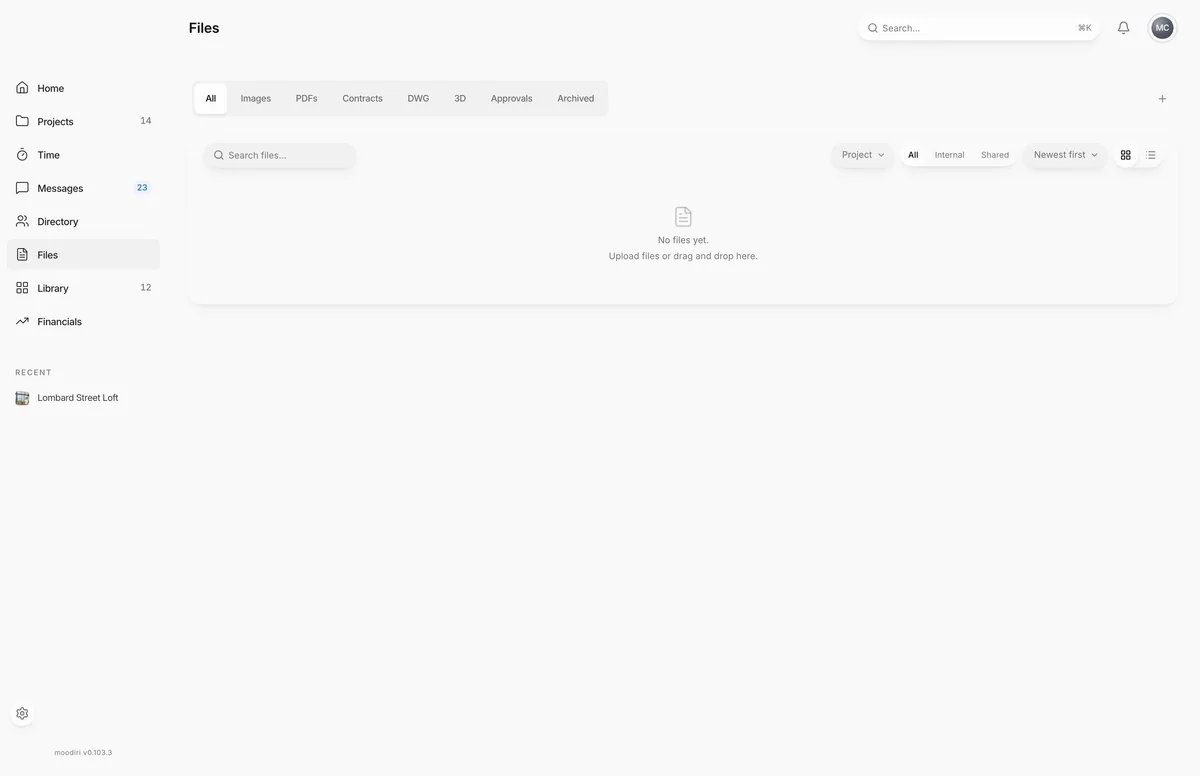
- A row of file types across the top: All, Images, PDFs, Contracts, DWG, 3D, Approvals and Archived, each with a count.
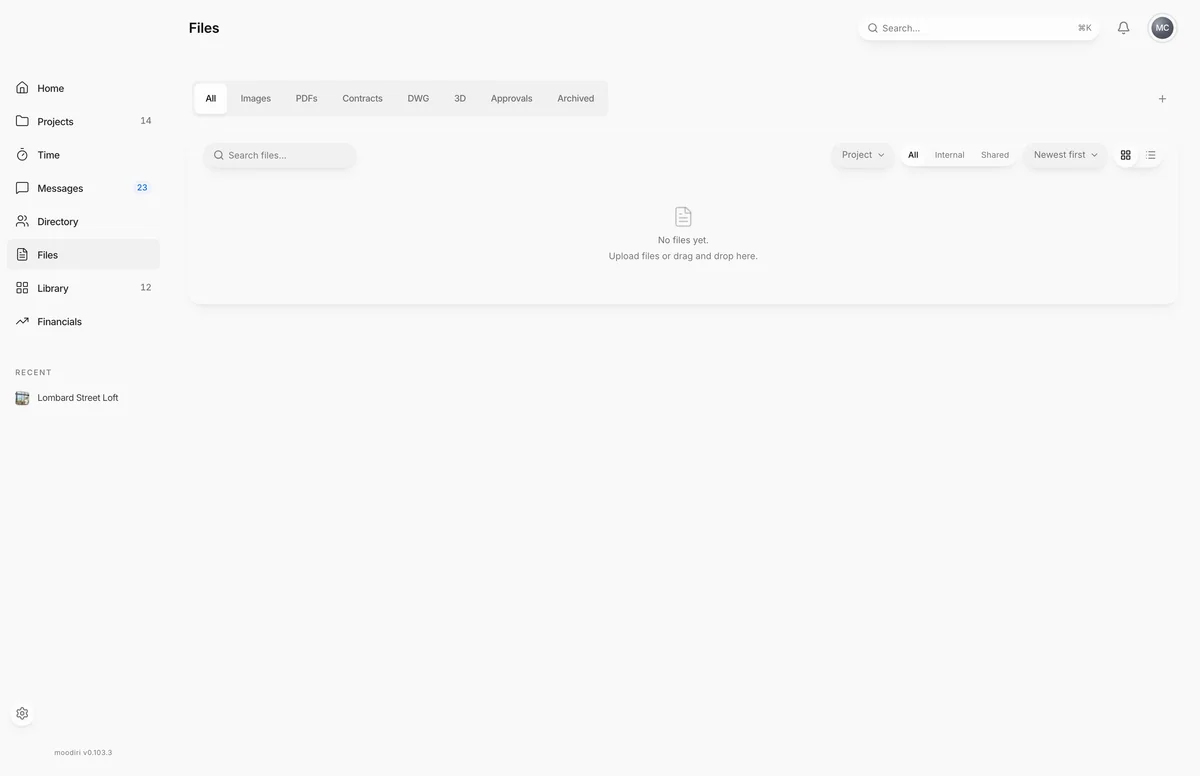
- A toolbar with Search files..., a project filter, a visibility filter, sort, and Grid view or List view.
- Your files as cards or rows. In list view you see Document, Project, Size, Uploaded and Category.
- Upload file at the top. See Upload a file.
Choose a file to open its detail panel, with a preview, its name, Description, Category, Project, Space, Size, Uploaded, Uploaded by and the Share with client switch.
To see one project's files only, open the project's documents page instead. See Project documents.
Upload, replace and duplicate detection
Upload with Upload file, or drag files onto the page. If a file with the same name already exists, Moodiri asks whether to keep both or replace the old one. See Upload a file.
Categories (Images, PDFs, Contracts, DWG, 3D, Approvals)
- 1File types
Moodiri sorts each upload into a category from its file type, for example a photo into Images and a drawing file into DWG. Choose a type in the row at the top to see only those files. To change a file's category, open it and choose a new one under Category.
Search, sort, grid and list view
- 1Grid view
- 2List view
- Search files... matches file names.
- The project filter shows All documents, Internal only (files not attached to a project) or one project's files.
- The visibility filter shows All, Internal (not shared with the client) or Shared.
- Sort by Newest first, Oldest first, Name A–Z, Name Z–A, Largest first or Smallest first.
- Grid view shows thumbnails; List view shows a table you can sort by column.
Rename, download, archive and restore
Open a file to work with it:
- Rename: choose the name at the top of the panel and type a new one.
- Download: choose Download file, or Open file to view it in a new tab.
- Archive: choose Document actions, then Archive. Archived files move to the Archived tab, which shows how many days are left before each one is permanently deleted.
- Restore: open the file in Archived and choose Restore.
You can also add a Description or move the file to another Project or Space from the panel.
Copy to another project
To reuse a file on another project, choose Document actions, then Copy to project.... See Copy a file to another project.
Limitation: payment proofs, refund receipts and tax-exemption certificates visible to admins only
Proofs of payment, client refund proofs and receipts, and tax-exemption certificates are financial records, so Files shows them only to the firm Owner and Admins. Members never see them. Payment and refund proofs stay with their payment or refund record: they can't be archived, and a refund proof can't be copied or moved to another project.
Limits
- Up to 100 MB per file.
- Archived files are permanently deleted after 30 days unless you restore them.
- Archived files can't be renamed, edited or shared.
- Payment and refund proofs can't be archived.
Questions
Do my clients see everything in Files?
No. Every file starts internal. A client sees a file only after you turn on Share with client for it. See Share a file with the client.
I archived a file by mistake. Can I get it back?
Yes, for 30 days. Open the Archived tab, choose the file and choose Restore. Right after archiving, you can also choose Undo in the message that appears.