Upload a file
Add a drawing, contract, photo or 3D file to Files or a project, up to 100 MB. Moodiri spots duplicate names and lets you keep both or replace.
Why use it
Drawings, contracts and renderings tend to live in email attachments and personal drives, so the latest version is hard to find and easy to send twice. Uploading to Moodiri files the document on the project, keeps one current version by name, and lets you share exactly the files your client should see.
When to use it
- Drawings and plans: floor plans, elevations and DWG files for a project.
- Contracts and agreements: signed contracts you want on record.
- Renderings and photos: images to share with your client in the portal.
To send a file as part of a conversation, attach it in Project chat instead. To file a document under one room, see Space documents.
Before you start
- Any teammate can upload.
- Files uploaded from Files start without a project. To file it straight into a project, upload from that project's documents page. See Project documents.
- On Home, you can also drop a file onto the Documents card.
Steps
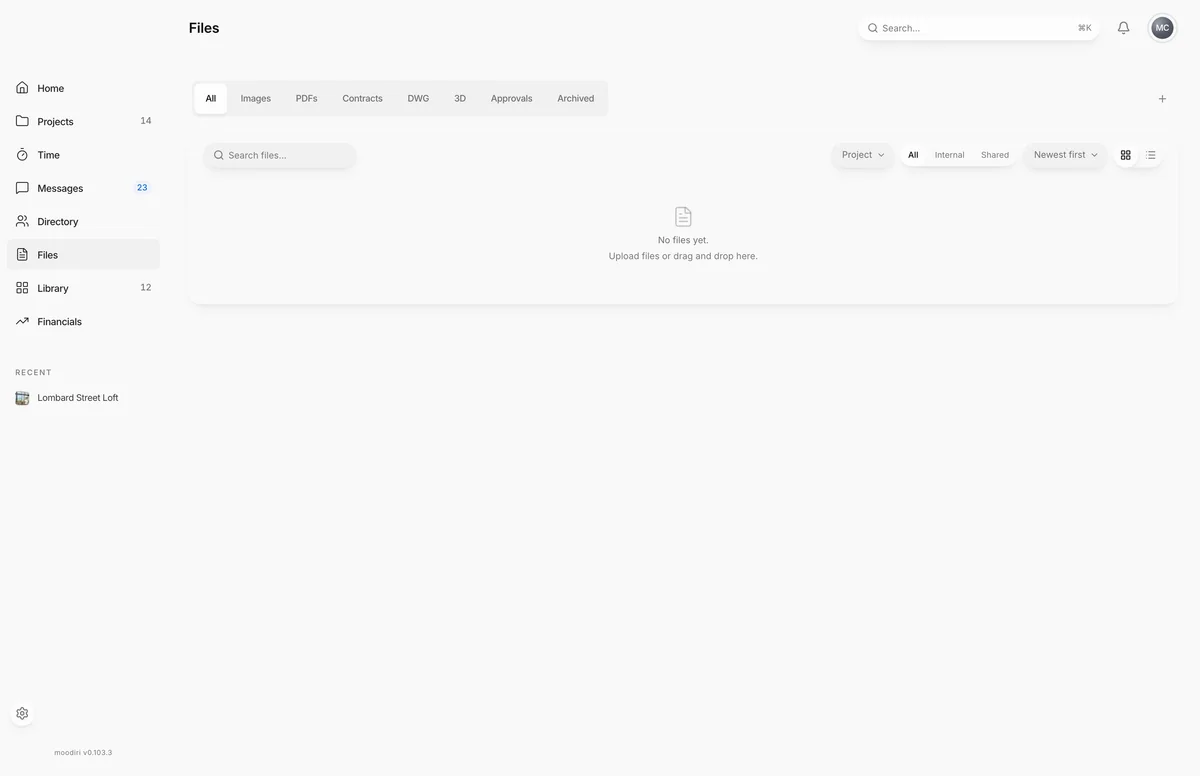
- Open Files in the sidebar to see every file across your projects.
- Choose Upload file (+) and pick the file, up to 100 MB. You can also drag it onto the page.
- To file it straight into a project, open the project's documents, such as Lombard Street Loft, and upload there.
Duplicate file names
If a file with the same name is already there, Duplicate file name asks what to do. Keep both saves the new file with "(copy)" added to its name. Replace existing archives the old file, which you can restore from Archived for 30 days.
Add details and share
Open the new file to add a Description, check its Category, and set its Project and Space. Turn on Share with client when your client should see it in their portal.
What happens next
- The file appears at the top of the list (newest first is the default sort), in a category chosen from its file type.
- It starts internal: your client sees it only after you turn on Share with client.
Limits
- Up to 100 MB per file.
- One file per upload, so Moodiri can check each name. Upload several files one after another.
- A duplicate name offers Keep both, which saves the new file with "(copy)" added to its name, or Replace existing, which archives the old file.
- SVG images aren't accepted. Save the image as PNG or JPEG and upload that.
Troubleshooting
- Upload failed. Please try again.: check your connection and try again. If it keeps failing, check the file's size and type against the limits above.
- Replace existing fails: payment and refund proofs can't be archived, so they can't be replaced. Choose Keep both instead.
Questions
Can I upload several files at once?
Upload one file at a time, so Moodiri can check each name for duplicates.
What happens to the old file when I choose Replace existing?
It's archived, not deleted straight away. You can restore it from the Archived tab for 30 days.
Which file types can I upload?
Images (JPEG, PNG, WebP, GIF, TIFF), PDFs, Word, Excel, CSV and PowerPoint files, DWG and DXF drawings, SketchUp, 3DS, OBJ, glTF and FBX models, ZIP archives and plain text. SVG files can't be uploaded.