Library
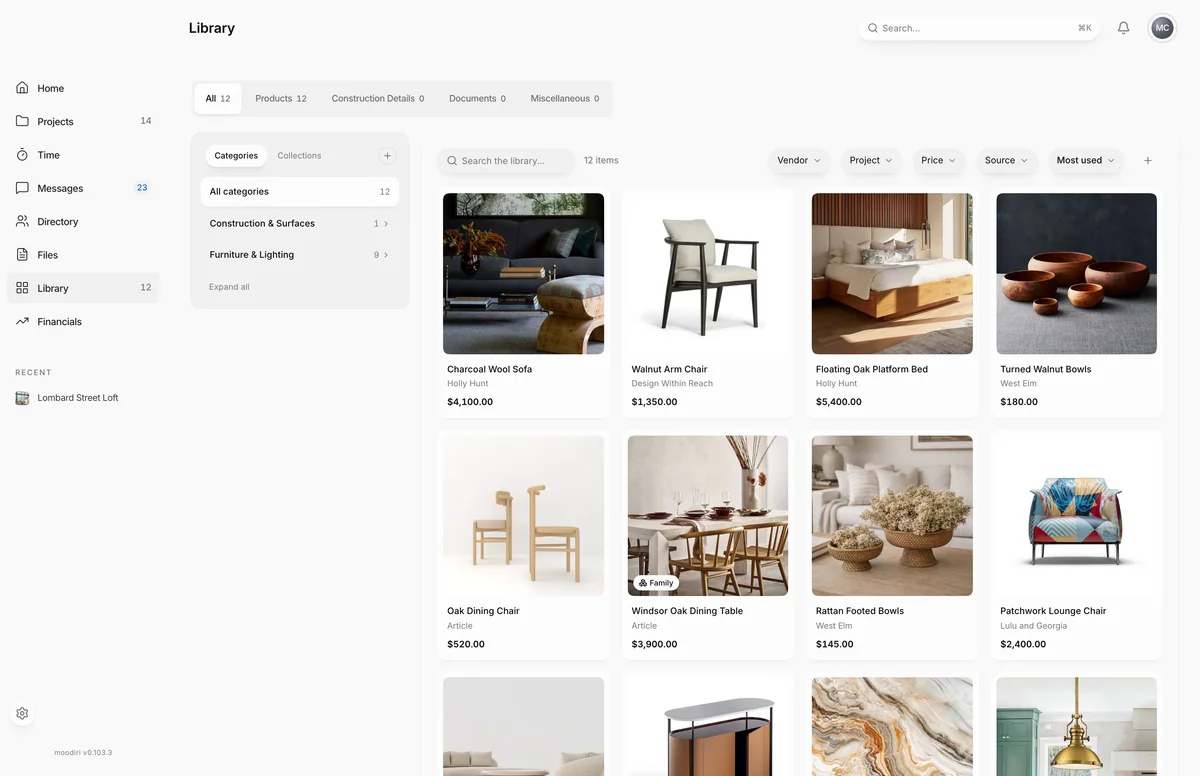
Your firm's reusable catalog of products, construction details, documents and other items, ready to drop into any project.
- 1Add to library
- 2New collection
The Library is everything your firm reuses across projects: products you specify again and again, construction details, documents, and anything else worth keeping. Instead of hunting through old projects for that pendant or that window jamb detail, you find it here and add it to the next project.
Open it from Library in the sidebar. Choose an item's card to see its details, or the heart on a card to mark it as saved.
Kinds: Products, Construction details, Documents, Miscellaneous
- 1Kind tabs
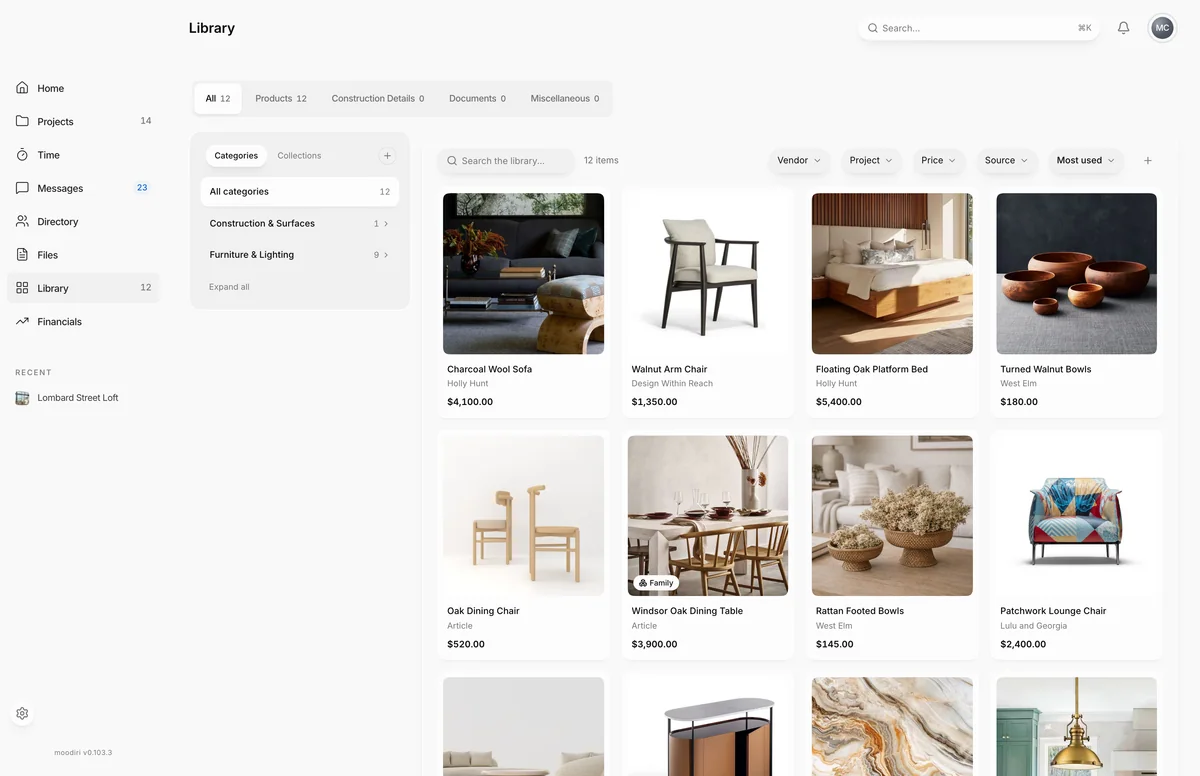
The tabs across the top split the Library by kind: All, Products, Construction Details, Documents and Miscellaneous. Each tab shows how many items it holds. Only products can be added to a project's spaces; the other kinds are reference material you keep alongside them.
Categories and collections
- 1New collection
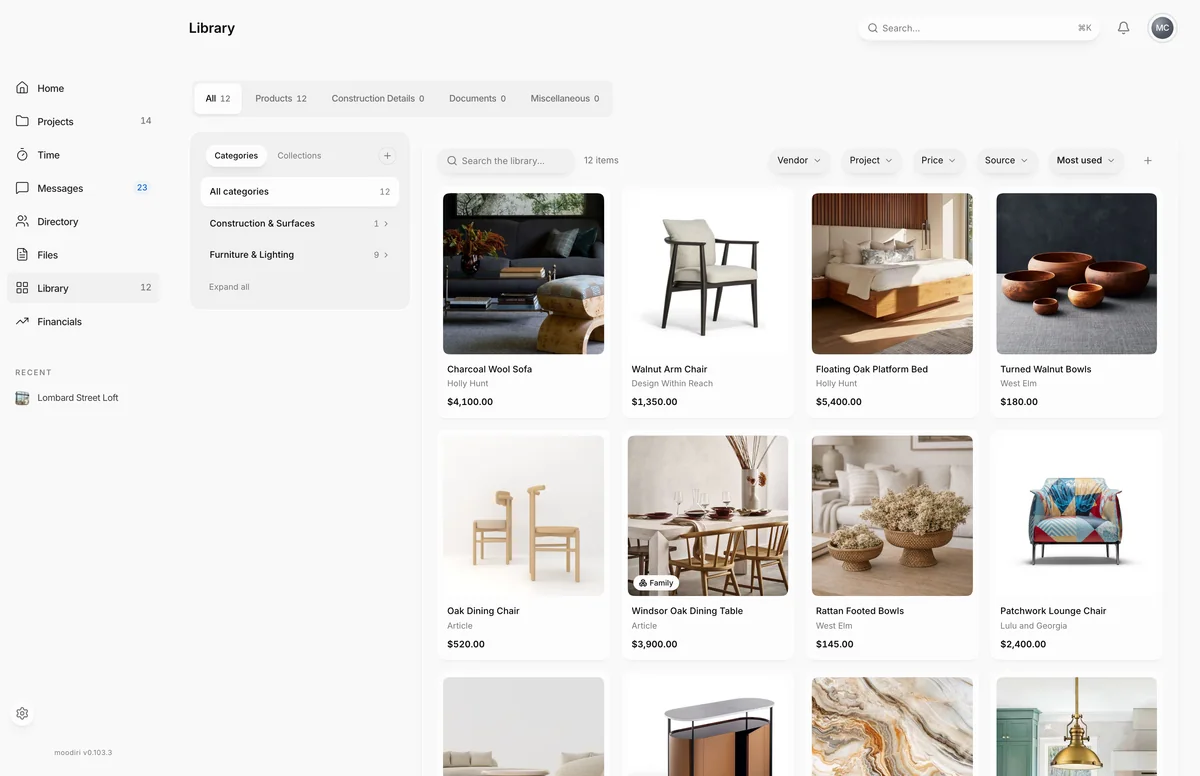
The panel beside the grid narrows what you see.
- Categories (on All and Products) group products by type, under headings such as Furniture & Lighting or Fixtures & Hardware. Choose a heading to expand it, then choose a category. Expand all and Collapse all open or close every heading.
- Collections are groups you build yourself, for example Coastal living room. Choose + (New collection) to create one. To add an item, open it and choose the collection's name under Collections. Choose the name again to take it out.
Filters (vendor, project, tag, price, source) and sorting
Use the search box and the filter pills above the grid to find an item fast. Filters only appear when there is something to filter by.
- Vendor and Project: items from one vendor, or items used in one project.
- Tag: items carrying a tag you added, such as #modern.
- Price: a price rating ($ to $$$$) or a price band: Under $100, $100–$500, $500–$1k or Over $1k.
- Source: how the item arrived: Manual, Extension, Approval, Project or Backfill.
- Sort: Most used, Recently added or Price.
The heart on a card (Save to library) marks an item as saved so it stands out when you browse.
Saved families
When you work with product families, the Products tab also offers All products, Families and Supplemental. Families lists the family configurations your team saved, each with its parent, children, catalog cost and how many projects use it. See Library families.
Limits
- Four kinds: Products, Construction Details, Documents and Miscellaneous.
- Price bands are fixed: Under $100, $100–$500, $500–$1k and Over $1k.
- Add to library is not offered in the Families view. Families are saved from a project instead.
Questions
How do products get into the Library?
Products you capture with the Chrome extension, add by hand, or use in projects are kept here. You can also choose Add to library to save any item yourself.
Can my clients see the Library?
No. The Library is for your team. Clients only see products you add to their project and make visible to them.
Is a collection the same as a category?
No. Categories come from each product's type and are filled in for you. Collections are groups you make and fill yourself, such as a look you reuse.