Invoices list
Every invoice across your projects in one table. Search, filter by status or project, sort, and open any invoice.
- 1Search invoices
- 2Create invoice
- 3Import invoices (admins)
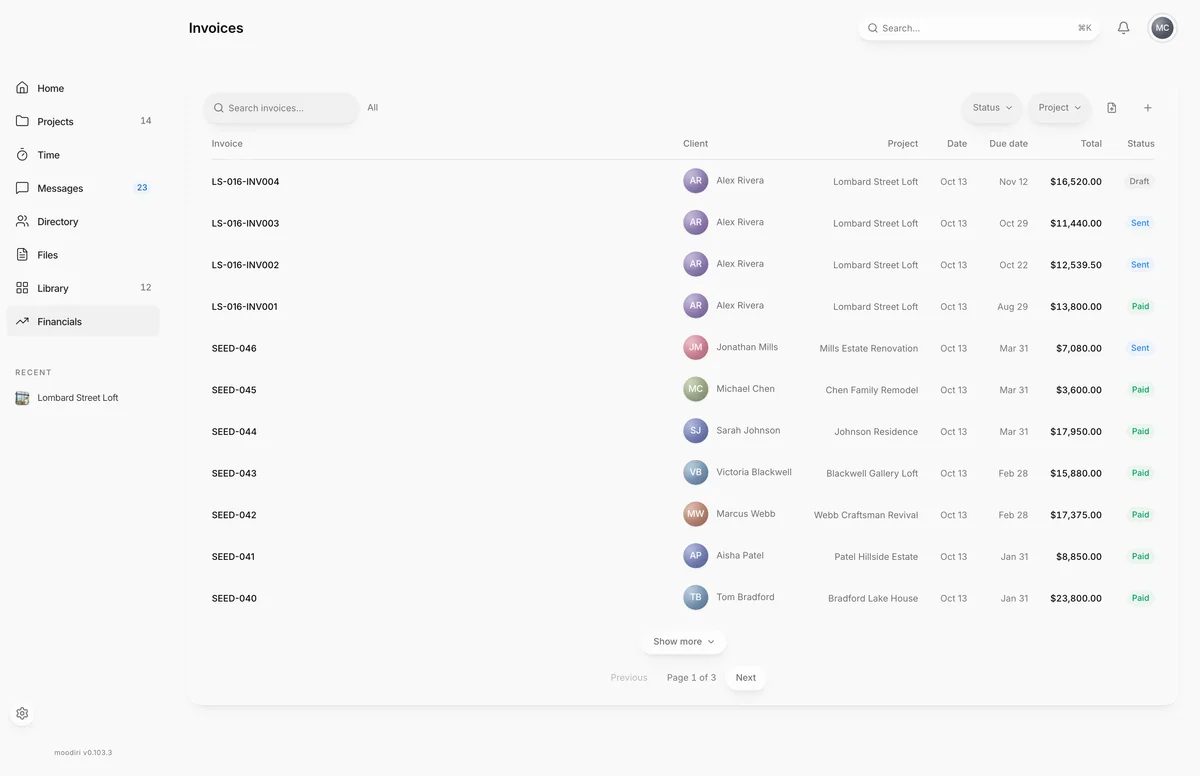
The invoices list shows every invoice in your firm with its client, project, dates, total and status. Use it to see what is outstanding, find a specific invoice, or start a new one. Open it from Invoices in the sidebar.
When your firm uses the Financial Hub, the same list lives on the hub's Invoices tab under Financials. See Where Invoices and Retainers go when the hub is on.
What you see here
Each row shows:
- Invoice: the invoice name.
- Client and Project, with a link to the project.
- Date and Due date.
- Total.
- Status: Draft, Sent, Viewed, Paid, Overdue, Void, Corrected, Payment processing or Correction processing. See How invoicing works.
On smaller screens some columns are hidden so the invoice, total and status stay readable. Choose a row to open the invoice page.
Search, filter and sort
- Search invoices finds invoices by invoice name, client name or email, and project name.
- Status narrows the list to one status, for example Overdue to see who to chase.
- Project narrows the list to one project. It appears once you have more than one project.
- Choose a column heading to sort by it. Choose it again to reverse the order, and a third time to clear the sort.
The list shows 25 invoices per page. Use the page controls at the bottom to move between pages.
Create or import
- Create invoice (the + button) opens a window where you pick the project and the kind of invoice. See Create an invoice.
- Import invoices opens the importer for invoices you issued before using Moodiri. Only the owner and admins see it. See Import past invoices.
Empty states
- No invoices yet appears before your first invoice, with Create invoice and, for admins, Import existing invoices.
- If Stripe is not connected yet and you have no invoices, the list shows Connect to Stripe instead. See Before you start: connect Stripe.
- No invoices match your filters. means your search or filters hide everything. Clear them to see the full list.
Questions
What can I search for?
The invoice name or number, the client's first name, last name or email, and the project name. You can type several words; each one has to match.
Why don't I see the Import invoices button?
Importing past invoices is for the owner and admins, so the button is hidden for members.