Product sections and options
A section holds the options for one decision in a room. Compare them, pick one yourself, or send them to your client.
- 1Add option
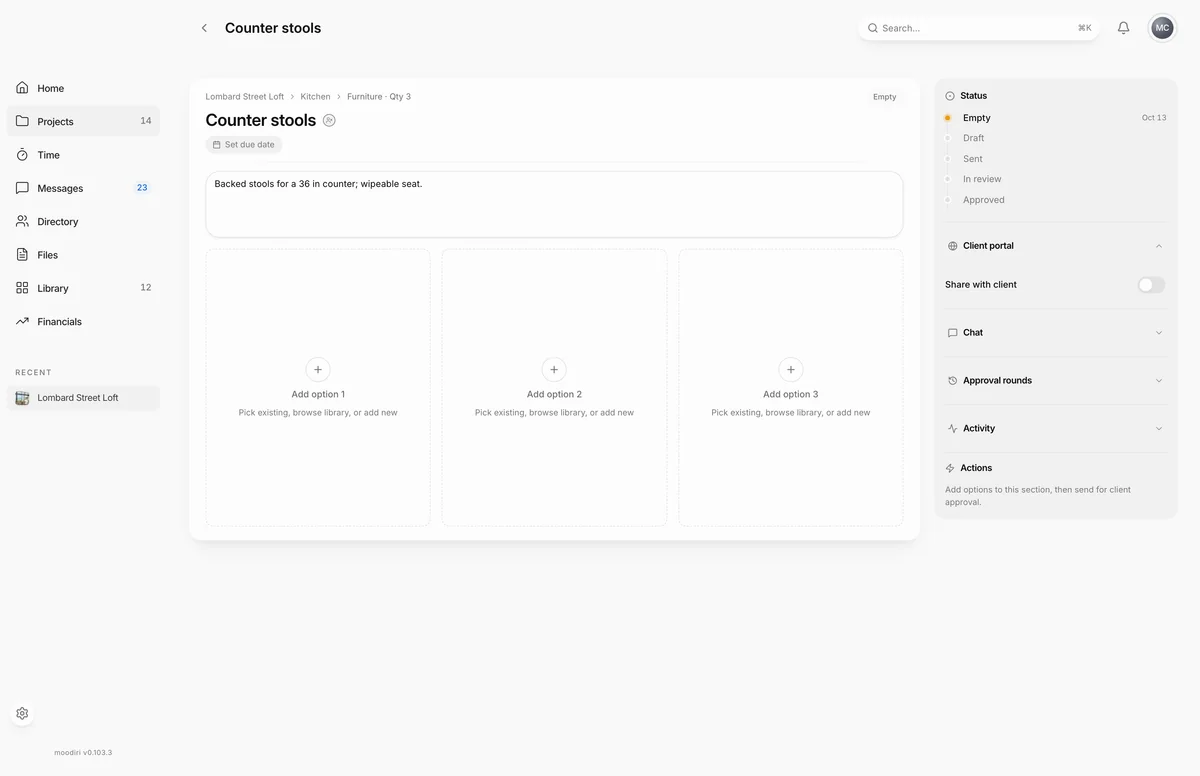
A product section is one decision in a room, such as Kitchen island pendants for Lombard Street Loft. Its page puts up to three options side by side, with the facts your client needs to choose. From here you compare, pick a final option yourself, or send the options to your client and follow their answer.
To open a section, select its card on the Sections view.
What you see here
- The section's name, category and status, with a breadcrumb back to the room.
- A due date, and Awaiting your client's decision while a request is out.
- The option cards, each with a photo, name and the comparison fields you turned on.
- Empty Add option cards until the section has three options. See Add options.
- A side panel with Status (Empty, Draft, Sent, In review, Approved), Client portal visibility, the request's Chat, Approval rounds, Activity and Actions.
Compare options (price, notes, pros, cons)
Choose Edit comparison in Actions to turn on the fields your client should compare. The built-in fields are Notes, Price, Pros, Cons and Vendor link. Choose Custom to add your own field, such as Lead time. Each field you turn on appears on every option. Price shows the client price from the product. While editing, you can also write a description of the section. Choose Done editing when you finish.
Star one option as recommended. Its photo becomes the section's cover on the room's Sections view.
Select an option as final
When the choice is made without a client vote, choose Select as final under the option. The option becomes the section's selected product and moves to the room's Final selection.
Sharing is a separate choice. Tick Also share with the client first to add the final pick to the client portal. Leave it off to keep it internal for now.
If your client approved the section without picking one option, the page asks you to choose the final one and shows Select as final on each option.
Send options for approval
When the section has one to three options, choose Send in Actions to email your client a request to pick one. See Send options for approval.
Reopen a decision, resend, archive
Once a section has been sent, Actions changes with the request's status:
- Resend emails the request again while it is sent, viewed, or has changes requested. If nothing has changed since you sent it, Moodiri asks you to confirm with Resend anyway.
- Reopen decision moves an approved section back to in review, so your client sees it as undecided again.
- Reopen approval reopens a closed request.
- Archive hides the request from the dashboard and the client portal but keeps it for reference. If the request produced a product, you choose Keep the product, archive the request or Delete both.
- View approval details opens the full request on the approvals page.
Section templates
- 1Save as template
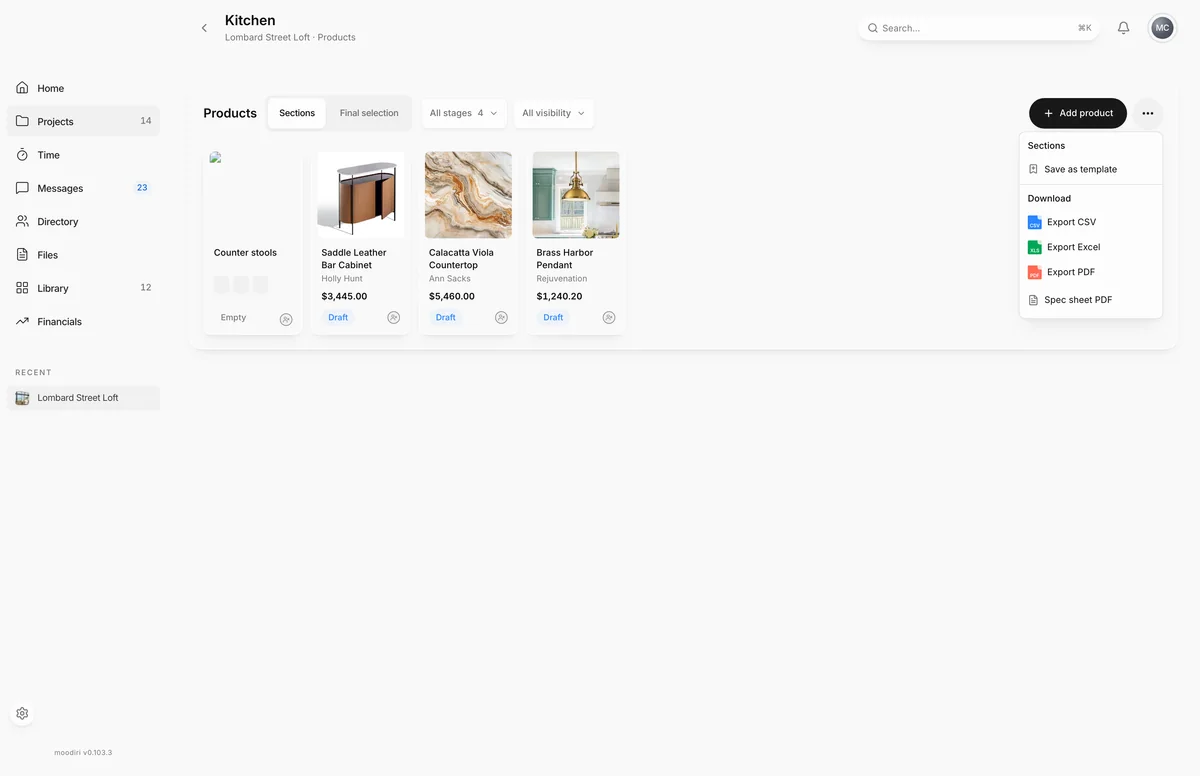
To reuse this room's sections elsewhere, choose More product actions on the room's products page, then Save as template. Name it, for example Primary bath, and choose Save template. Load the template when you add a space, and manage saved templates in Settings › Section templates.
Limits
- An approval sends up to three options. Remove options above three before sending.
- Options can be edited while the section is empty or has options added but not sent. While a request is out, new options stay private until you send updated options.
- Resend shows for sent, viewed and changes-requested requests. Reopen decision shows for approved ones.
- Only admins can delete an option's product outright. Members remove it from the section and the product stays in the room.
Questions
How many options can a section have?
An approval sends up to three. Once a section has three options, the next Add option card asks you to remove one first.
Can I add an option after sending?
Yes. New options stay private until you choose Send updated options. Your client's current request stays as it was.
Why can't I edit the options?
The section is with your client or decided. Reopen the decision, or wait for your client to respond.