Clients, vendors and directory
Clients
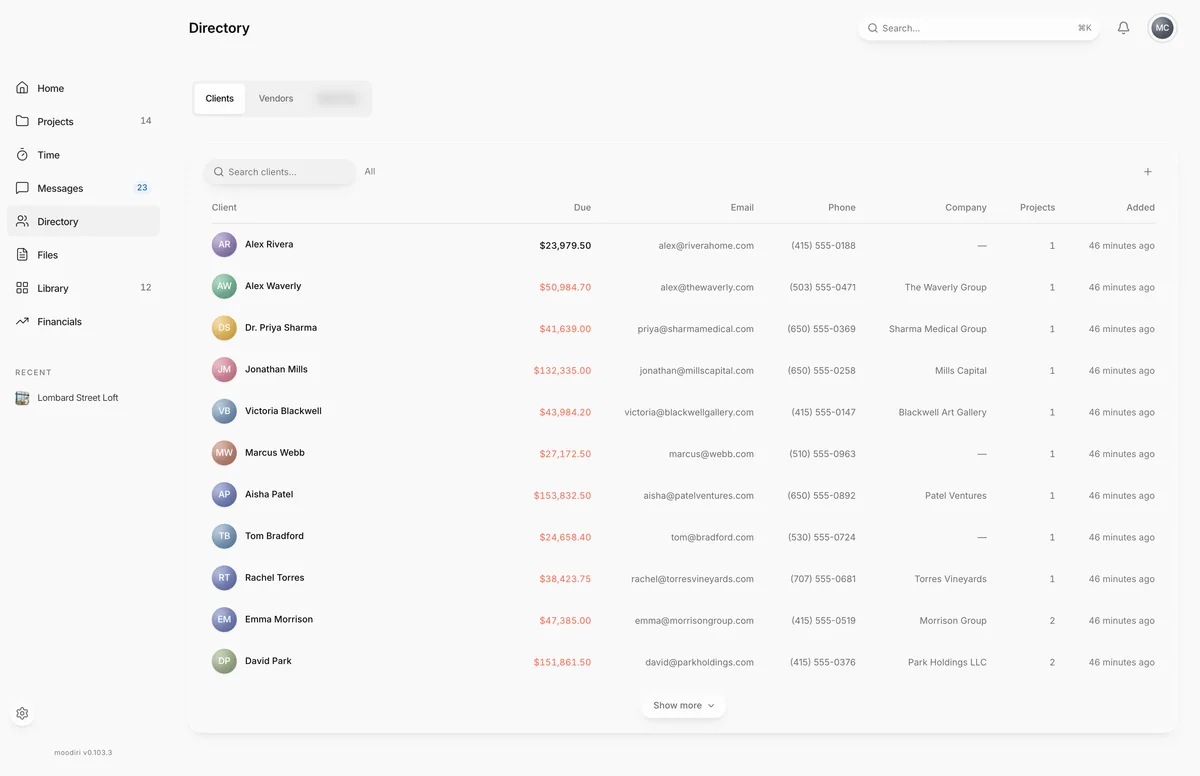
Every client your firm works with in one sortable list, with what they owe, their projects, and a search across name, email, phone and company.
- 1Add client
The Clients list is where every client record lives. Use it to find a client fast, see who owes money, and open a client's page for their projects, invoices and portal access.
Open Directory from the sidebar; it opens on Clients.
What you see here
- A table with Client, Due, Email, Phone, Company, Projects and Added. Choose a column heading to sort by it. On smaller screens some columns are hidden.
- Due is what the client owes. It turns red when an invoice is overdue.
- Search clients... matches a client's name, email, phone or company.
- Choose a row to open the client page.
Add a client
Choose Add client (the + beside the search) to open the new client steps. See Add a client.
Edit, invite or delete
These are on each client's page:
Limits
Limits
- Only the owner and admins can add, edit or delete clients.
- A client with projects cannot be deleted until those projects are removed or given another client.
Questions
Why is a client's amount shown in red?
They have an invoice past its due date. The amount is what they owe across all their invoices.
Can I add a client from a project instead?
Yes. In a project, choose Manage clients to pick an existing client or create a new one. See Add a client to a project.
Next
Add a clientClients, vendors and directoryClient pageClients, vendors and directorySend or resend a portal inviteClients, vendors and directory
Was this page helpful?
Thanks, noted.