Approvals list
Every approval request in a project, filterable by stage and space, so you can see what your client still has to decide.
- 1New request
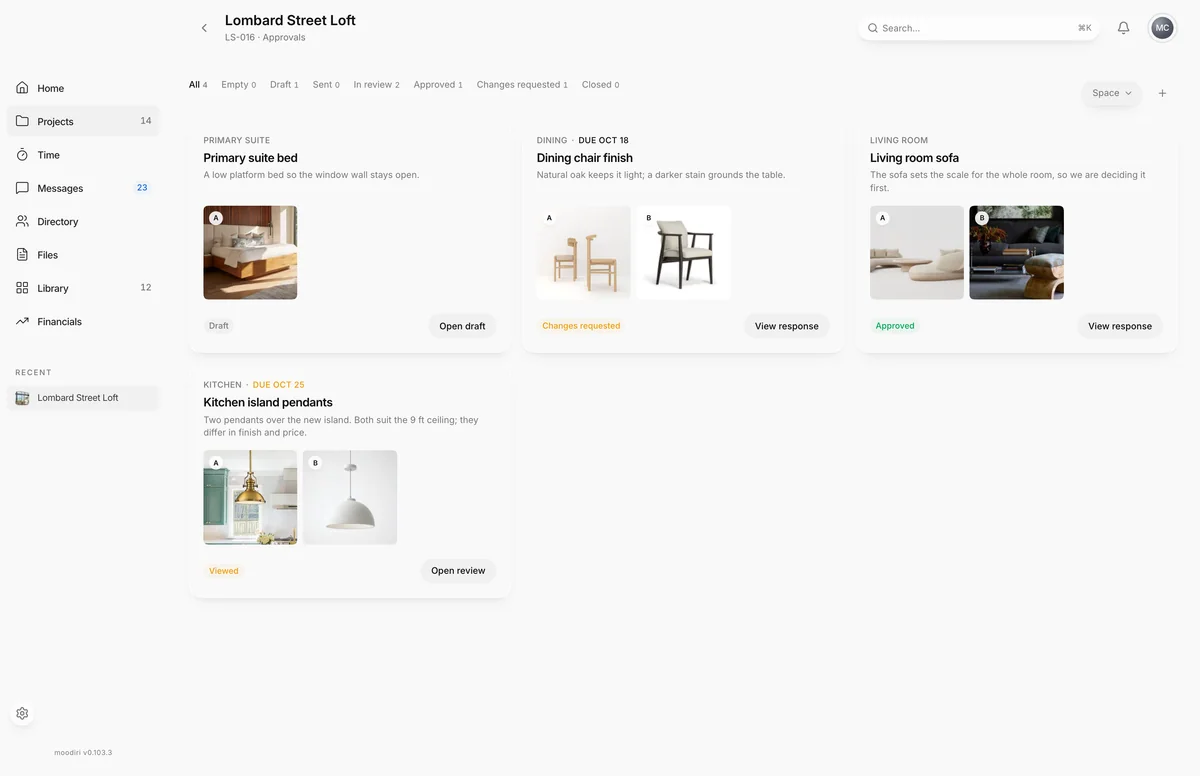
The approvals list shows every approval request in one project, from drafts you are still building to decisions your client made months ago. Use it to chase open decisions, find who approved what, and start new requests.
To get here, open the project and choose View all in its Approvals section.
What you see here
Each request is a card with its space and due date, its title and your note, up to three option images, its status and a button that says what happens next: Open draft, Open review or View response.
Choose a card to open a quick view. It shows the options and photos and the conversation with your client, where you can reply. Choose Open full screen for the full approval details, with every action.
Choose New request (+) to start a request. See Create an approval request.
A project with no requests shows No approval requests yet.
Filter by state and space
- 1Space filter
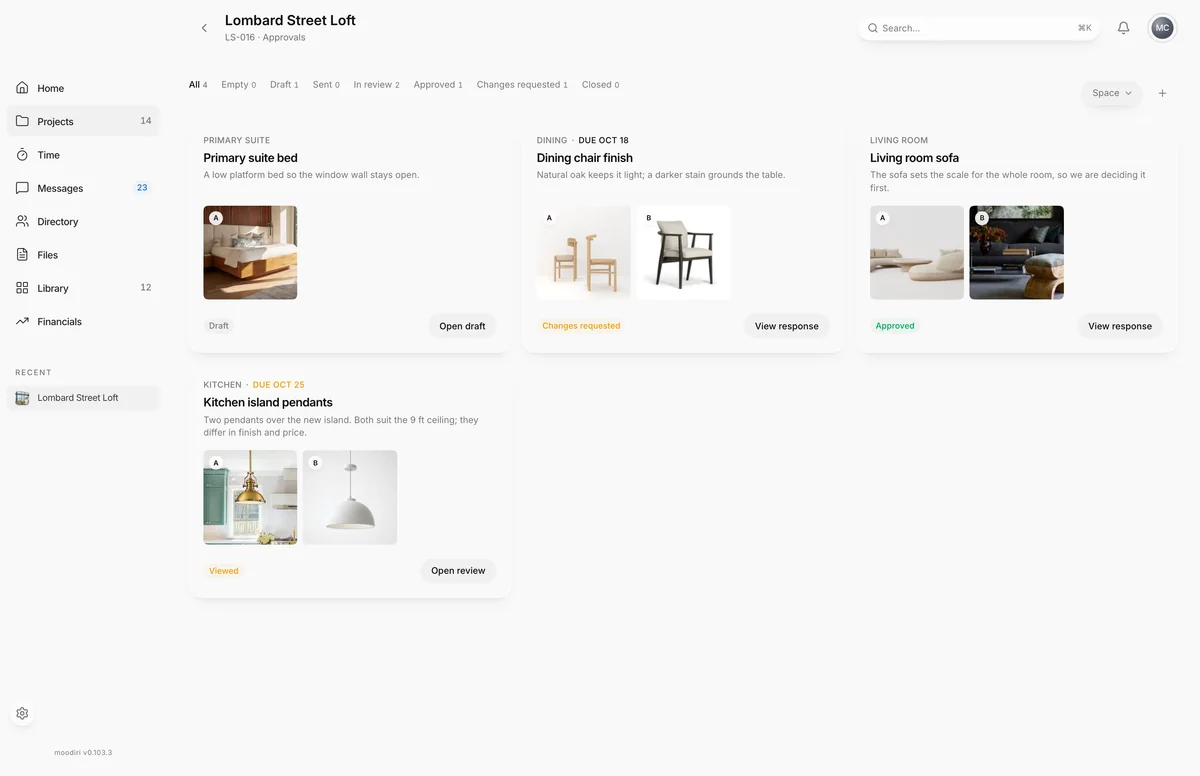
The filter row across the top narrows the list by stage. Each filter shows how many requests it holds.
- All: every request.
- Empty: drafts with no options yet.
- Draft: drafts with at least one option, not yet sent.
- Sent: sent, and your client hasn't opened them.
- In review: opened by your client, including requests where they asked for changes.
- Approved: your client chose an option.
- Changes requested: your client asked for something different.
- Closed: closed or expired requests.
Choose Space to show the requests for one room, or General (no space) for requests that aren't tied to a room. The Space filter appears once the project has spaces.
If nothing matches, the list shows No approvals match the selected filters.
Questions
Where do archived requests go?
They no longer appear on this list or in your client's portal. See Delete an approval.
Can I reply to my client from the list?
Yes. Open a request's quick view and type in Reply to the client… at the bottom.