Time tracking
Team time
See everyone's logged hours for a week, day by day, with billable time, overtime, time off and each person's timesheet status.
- 1Review timesheets
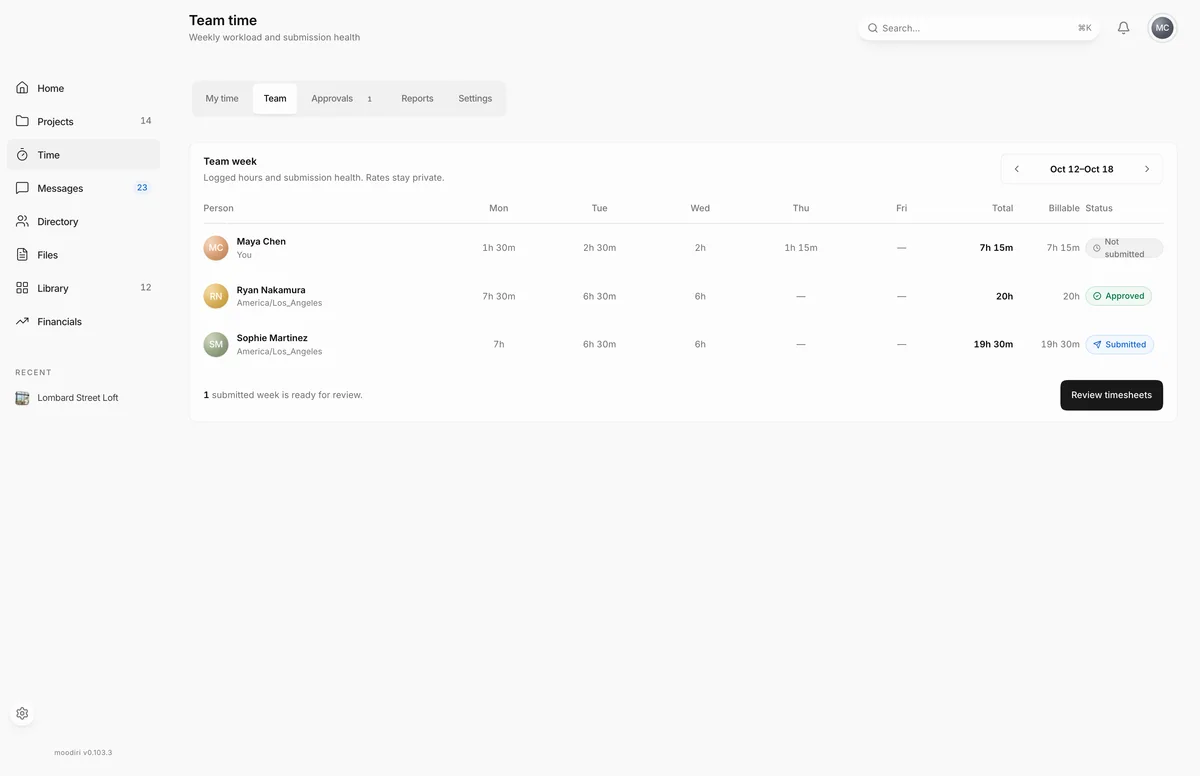
Team time is the weekly roll-call for your studio. It shows how many hours each person logged, which days they logged them, and whether their week is submitted, so you can spot a missing timesheet or an overloaded designer before the week closes. Open Time, then choose Team. Only the owner and admins see this tab.
What you see here
- Team week, with arrows to move between weeks.
- One row per person, with their name and timezone (or You for your own row).
- Hours for each weekday, plus Total and Billable.
- Weekend, OT and Time off columns, shown only when someone has that kind of time in the week.
- Status: Not submitted, Submitted, Returned or Approved, or Not started when the person has no timesheet that week.
When weeks are waiting for a decision, a footer says how many are ready for review. Choose Review timesheets to open Timesheet approvals.
When to use it
- Before payroll or invoicing, to check everyone has submitted.
- Weekly check-ins, to see who is stretched and who has room.
- Chasing missing time, by spotting Not started and Not submitted rows.
Limits
Limits
- Only the owner and admins can open Team.
- Team time shows hours, not rates or costs.
- Only active team members appear. Add people in Team settings first.
Questions
Can teammates see each other's rates here?
No. Team time shows hours and status only. Rates stay private.
Someone shows Not started. What does that mean?
They have no timesheet for that week yet, usually because they have logged nothing.
Next
Was this page helpful?
Thanks, noted.