Library · Library
Add to the library
Save a product, construction detail, document or other item to your Library by hand so your team can reuse it on any project.
Why use it
Good finds get lost: a supplier link in a bookmark, a detail drawing on someone's desktop. Saving them to the Library puts them in one place your whole team can search, filter and drop into the next project.
When to use it
- A product you plan to reuse. A go-to sconce or a house tile you specify often.
- Reference material. A standard construction detail or a document your team keeps returning to.
- Building a look. Save several items, then group them in a collection.
To capture a product straight from a supplier's website, use the Chrome extension instead.
Before you start
- Any member of your team can add to the Library.
- Open Library from the sidebar. Choose the tab for the kind you are adding to save a step.
Steps
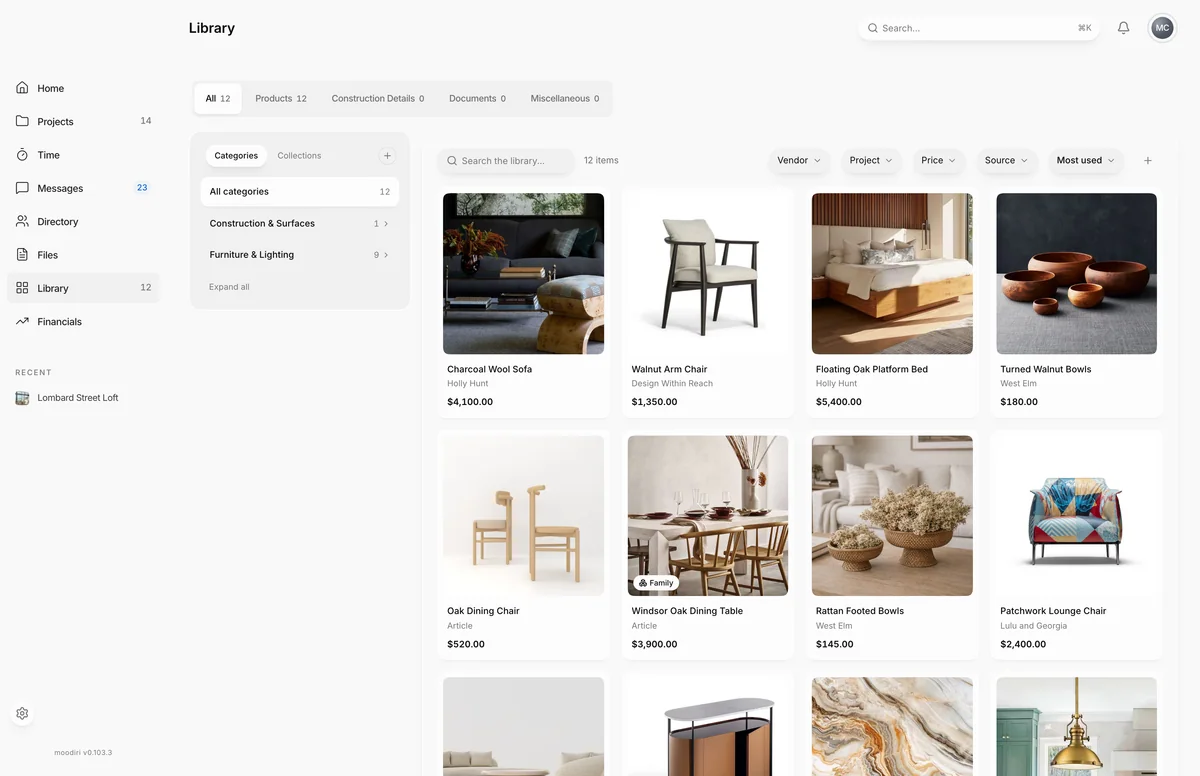
- In the Library, choose Add to library, the + next to the sort control.
- Give the item a Name, for example Kitchen island pendant. It is the only required field.
- Pick the product Type, such as Lighting. Type, cost and rating only appear for products.
- Enter your Unit cost so the team sees what the item costs before adding it to a project.
- Set a Price rating from $ (cheap) to $$ (ultra expensive), or leave it Not rated.
- Paste the Product URL so anyone can find the source again. Other kinds call this field Link.
- Type a tag and press Enter or a comma after each one. Tags become a Library filter.
- Choose Save to add the item to the Library under its kind.
What happens next
- You see Saved to library and the item appears in the grid, under its kind.
- Open the item to add photos, notes, brand, model and finish. See Edit a library item.
- Products can now be added to any project's spaces. See Add a library product to a project.
Limits
Limits
- A name is required, up to 300 characters.
- Up to 30 tags per item, each up to 40 characters.
- Type, Unit cost and Price rating apply to products only.
- Add to library is hidden in the saved Families view.
Troubleshooting
- Name is required. Type a name before choosing Save.
- Use up to 30 tags per item. Remove a tag before adding another.
Questions
Do I have to add products to the Library by hand?
Usually not. Products you capture with the Chrome extension or use in projects are saved here too. Adding by hand is for items you have not used yet.
Can I add photos here?
Not in this dialog. Save the item, open it, choose the pencil to edit, and upload or paste photo links there.
Next
Was this page helpful?
Thanks, noted.