Add a library product to a project
Drop a product from your Library into a project's space, or straight into one of its open product sections, in two clicks.
Why use it
Re-entering a product you have specified before wastes time and invites typos in the cost or model number. Adding from the Library copies the saved details into the project in one step, and the Library keeps a record of every project that used it.
When to use it
- A go-to product. The pendant you use in every kitchen goes straight into Kitchen for Lombard Street Loft.
- Filling a section's options. Add a Library product as one of the options your client will compare.
To browse the Library from inside a space instead, see Add a product from the Library. For a whole set of parent and child products, add a family.
Before you start
- Everyone on your team (owner, admins and members) can add Library products to projects.
- The project needs at least one space. See Add a space.
- Open the product's Library product page.
Steps
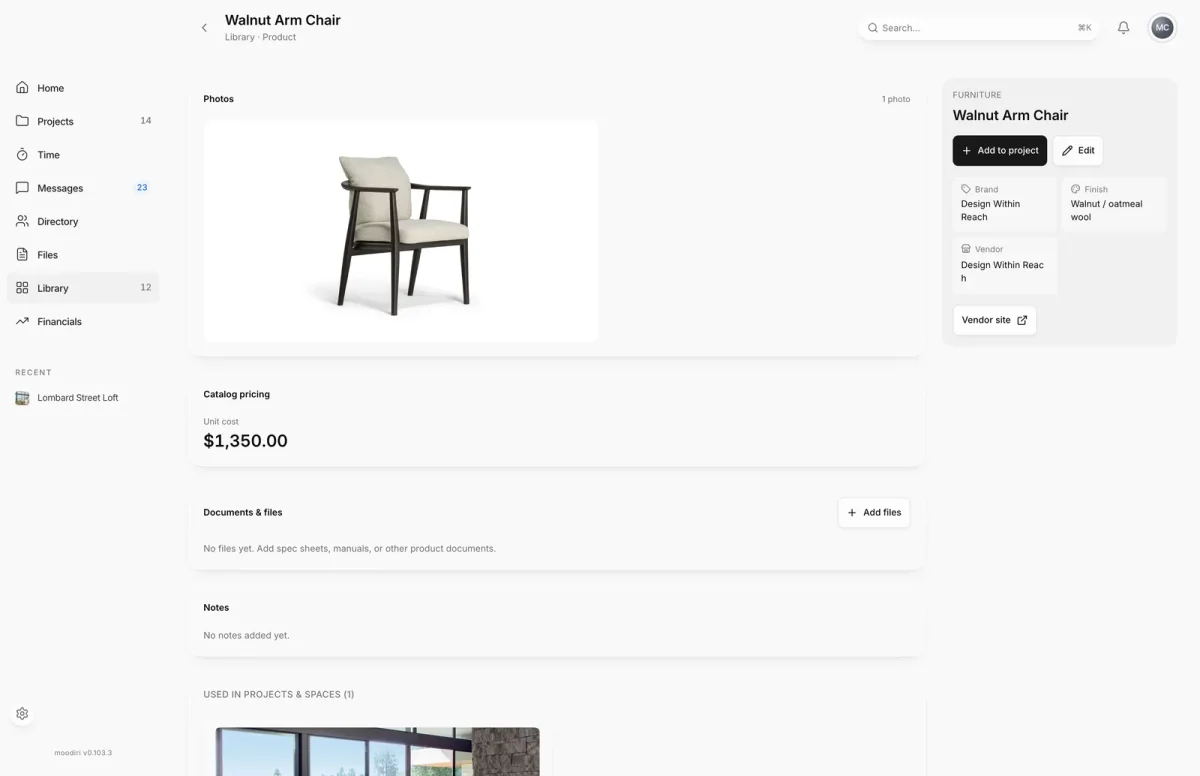
- 1Add to project
- On the product's Library page, choose Add to project.
- Find the project, Lombard Street Loft, and choose the arrow beside a space, for example Kitchen, to see its sections.
- Choose a section, for example Counter stools, to add the product to the space and to that section as an option.
- Or choose the space itself, Kitchen, to add the product there as a new product.
What happens next
- The product is added to the space as a new product, ready for pricing, client visibility and approvals.
- If you chose a section, it is also added there as an option.
- The project appears under Used in projects & spaces on the Library product page.
Limits
- Only products can be added to projects. Construction details, documents and other kinds stay in the Library.
- Supplemental products can only be added through a library family.
- Only open product sections are offered.
Troubleshooting
- No spaces yet. Create a project with spaces first. Add a space to a project, then try again.
- No open product sections. The space has no section that can take another option. Add the product to the space instead.
- Added to the space, but couldn't add it to that section. The product is in the space. Add it to the section from the space.
Questions
Does the project product stay linked to the Library?
It is added as a new product in the space, and the Library product page lists that project under Used in projects & spaces. Editing the Library record later does not change the project's product.
Can I add the same product to several spaces?
Yes. Choose Add to project again for each space.