Edit a library item
Update a Library item's name, photos, cost, tags and notes, or remove it from the Library when your team no longer uses it.
Why use it
Supplier prices change, finishes get discontinued, and the first photo you grabbed is rarely the best one. Keeping the Library record current means the next person who adds the product to a project starts from the right cost, link and images.
When to use it
- The catalog cost changed. Update Unit cost so new projects start from today's price.
- Better photos. Upload a cleaner product shot and make it primary.
- Retire an item. Remove a product your firm no longer specifies, so it stops showing up in searches.
Before you start
- Everyone on your team can edit Library items. Only the owner and admins can remove an item from the Library.
- Open the item from the Library. For a product, open its Library product page.
Steps
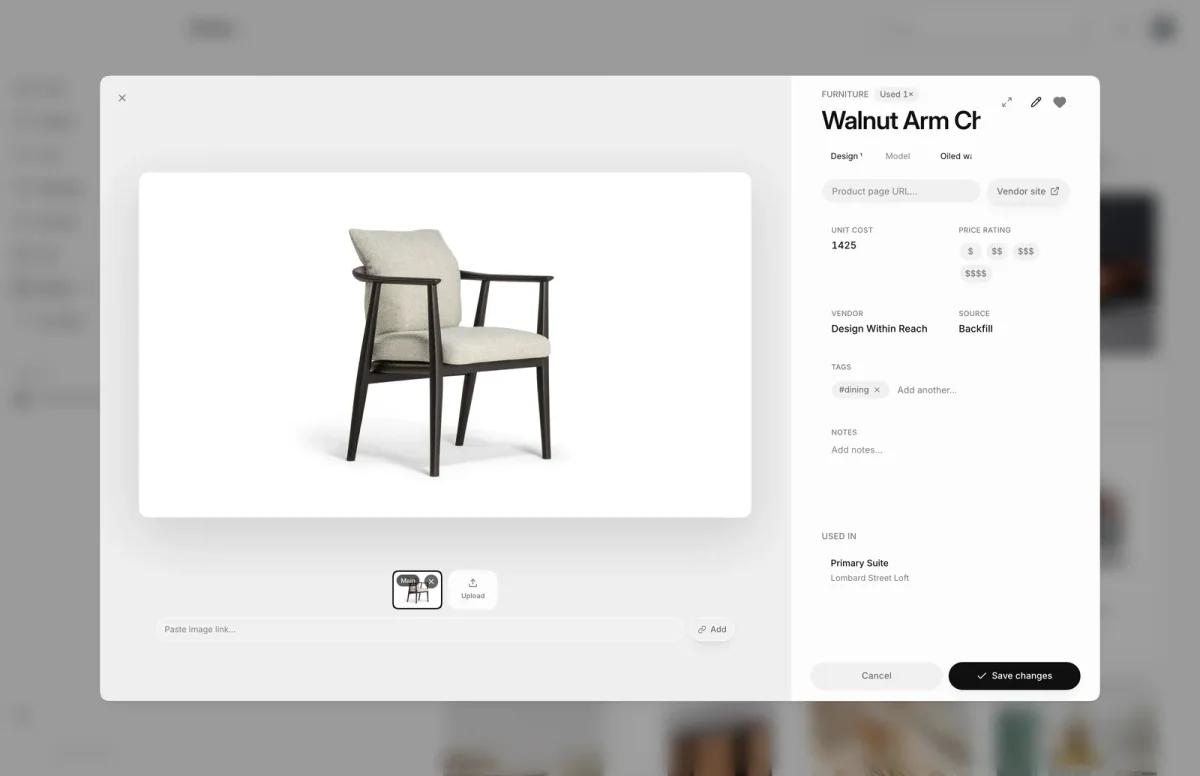
- 1Save changes
- In the Library grid, choose the item's card, for example Walnut Arm Chair, to open its details.
- Choose the pencil, Edit item. The details turn into fields you can change.
- Change the name, Brand, Model or Finish under the title, for example Oiled walnut.
- Choose Upload or paste an image link to add photos. Choose a thumbnail to make it the primary photo.
- Update the Unit cost so new projects start from today's price, for example 1,425.
- Add tags so the item turns up in Library filters. Press Enter or a comma after each one.
- Choose Save changes. Products already placed in projects keep their old details.
Remove an item from the Library
Open the item's details from the Library grid and choose the bin (Remove from library). If you are editing, choose the pencil to stop editing first. You see Removed from library, and the item leaves the grid.
What happens next
- You see Library item updated and the Library shows the new details.
- Products already placed in projects keep the details they had when they were added.
Limits
- A name is required, and the unit cost must be a valid amount.
- Photos must be JPEG, PNG or WebP, up to 20 per item.
- Up to 30 tags per item, each up to 40 characters. Notes can be up to 5,000 characters.
- Removing an item needs the owner or an admin.
Troubleshooting
- Only JPEG, PNG, and WebP images are allowed. Save the photo in one of those formats and try again.
- Use a valid image link. Paste a direct link to an image file, not a web page.
Questions
Will my changes update products already in projects?
No. Adding from the Library creates a separate product in the space, so a later Library edit does not change it.
What does Remove from library do to my projects?
The item leaves the Library. Products already added to spaces stay where they are.