Import from QuickBooks
Bring your earlier QuickBooks clients, invoices, payments and credit memos into Moodiri, checking each record before it's added.
Why use it
Starting in Moodiri shouldn't mean losing your billing history. Importing brings past clients, invoices and payments across from QuickBooks, so a project's full billing history sits in one place. Because you check every record first, nothing arrives attached to the wrong client or project.
When to use it
- Moving to Moodiri. Bring in clients and invoices you issued before you connected QuickBooks.
- Catching up later. Scan again to pick up records added in QuickBooks since your last scan.
New invoices you issue in Moodiri post to QuickBooks automatically. You don't need to import those. To bring in invoices from somewhere other than QuickBooks, see Import past invoices.
Before you start
- QuickBooks is connected. See Connect and disconnect QuickBooks.
- You are the owner, or an admin with the Integrations permission.
- Open Settings, then choose Integrations.
Steps
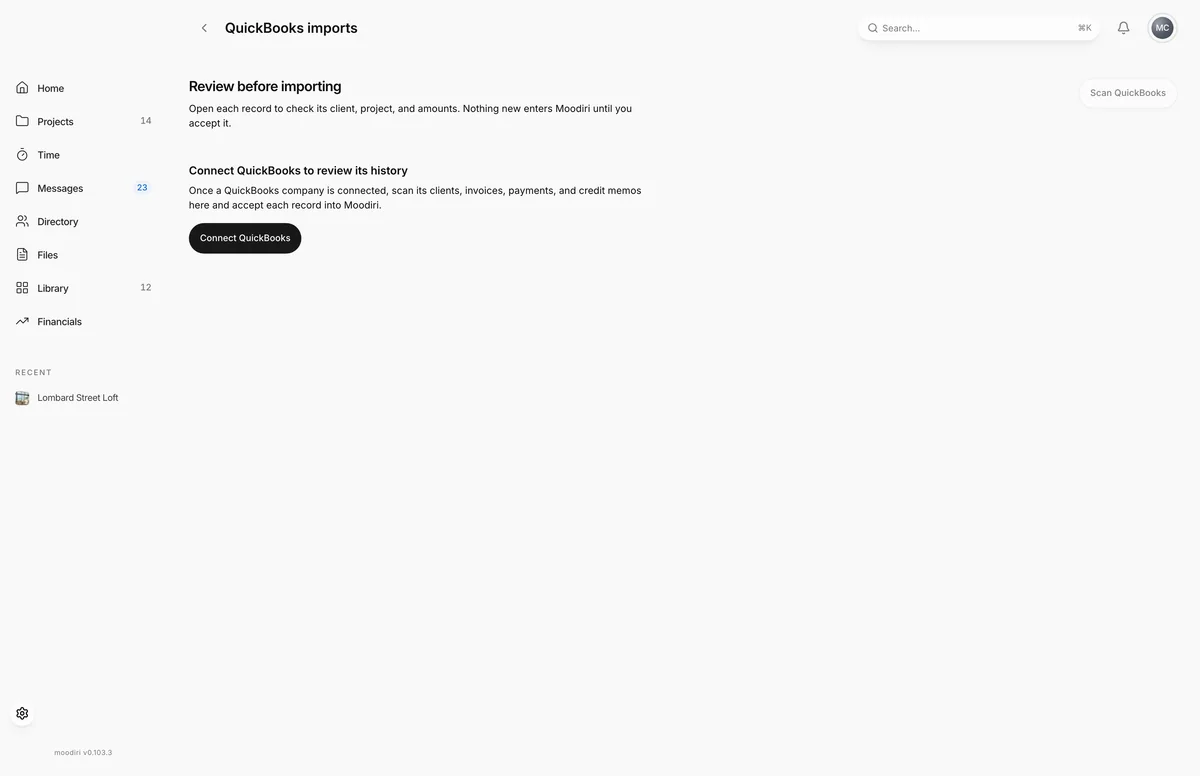
- Choose Scan QuickBooks (or Scan history on the Integrations card) to read your company's past records.
- QuickBooks imports lists every scanned record with its client, project and status.
- Filter by Invoices, Clients, Payments or Credit memos, or search by invoice number or client.
- Open a record and check its client, project and amounts before you decide.
- Choose Accept import to bring it in, or Reject and then Confirm rejection to skip it.
The review list
QuickBooks imports opens under Review before importing. Filter it by record type, Invoices, Clients, Payments or Credit memos, and by review status, Pending review, Accepted, Rejected or Already imported. Each row shows the client, project, date and amount. You can also start a scan here with Scan QuickBooks.
Check and accept a record
Each record opens with its client, project, status in QuickBooks, amounts and related payments or invoices. For invoices, choose Edit invoice details to correct anything before you accept. After an edit, choose Save changes, review the updated checks, then Accept import.
What happens next
- Accepted records are added to Moodiri and show Accepted into Moodiri, with Open in Moodiri.
- Rejected records stay in the list as Rejected until you reopen them.
- If a record changes in QuickBooks after you imported it, the record offers Update Moodiri.
- The QuickBooks card shows when the last invoice was imported and when you last scanned.
Limits
- Scanning and accepting need an active QuickBooks connection. Records you already reviewed stay readable if you disconnect.
- Nothing is added to Moodiri until you accept it.
- Only the owner and admins with the Integrations permission can open the import review.
Troubleshooting
- Couldn't confirm the QuickBooks connection. Scanning and accepting wait until the connection is confirmed. Choose Check again.
- Couldn't start the scan. Check the QuickBooks connection, then try again. Check the card on Integrations says connected, then scan again.
Questions
Will scanning change anything in Moodiri?
No. A scan only prepares the review list. Records are added one at a time when you accept them.
I rejected something by mistake.
Open the record and choose Reopen review.
What about records I already imported?
They show as Already imported, with Open in Moodiri to jump to the record.