Connect and disconnect QuickBooks
Link your QuickBooks Online company so invoices you issue and payments you receive post there automatically.
Why use it
Re-typing every invoice and payment into your accounting is slow, and it's where mistakes creep in. Once QuickBooks is connected, Moodiri posts each invoice you issue and each payment you receive to your QuickBooks company, so your books match what your clients see.
When to use it
- You keep your books in QuickBooks Online. Connect before you start invoicing in Moodiri, so every new invoice posts.
- The connection needs attention. Choose Reconnect when the card says QuickBooks connection needs attention.
- Permissions or access expired. Choose Refresh access on a connected card to sign in to QuickBooks again without disconnecting.
Before you start
- You are the owner, or an admin with the Integrations permission.
- You can sign in to the QuickBooks Online company you want to connect.
- Open Settings, then choose Integrations.
Steps
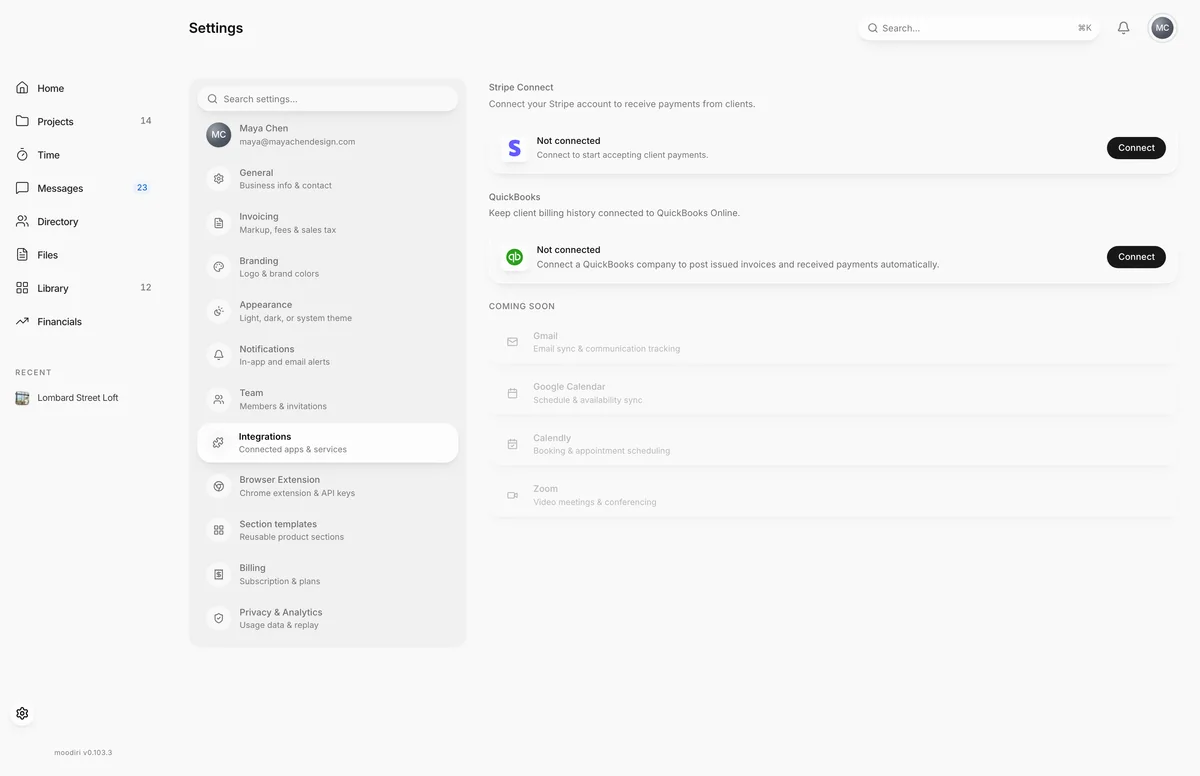
- 1QuickBooks
- In Settings, choose Integrations in the list of sections.
- Find the QuickBooks card below Stripe Connect. It shows Not connected until you link a company.
- Choose Connect. You go to QuickBooks to sign in, pick the company and approve the connection.
Connection states
- Not connected. Choose Connect.
- QuickBooks Online connected. Shows Connected, with Refresh access and Disconnect.
- QuickBooks connection needs attention. Shows Needs reconnection and a reason, for example that QuickBooks permissions changed. Choose Reconnect to resume invoice and payment posting.
Disconnect QuickBooks
Choose Disconnect, then confirm under Disconnect QuickBooks?. Invoice and payment posting stops. Existing records in both systems stay unchanged, and you can reconnect later. Activity from while you were connected stays readable in Settings.
What happens next
- Invoices you issue from now on, and their payments, post to QuickBooks automatically after you save.
- Review sync appears on the card so you can see what posted and fix anything held for review. See Sync review.
- Categories appears so you can choose which QuickBooks items your lines post to. See Choose which QuickBooks item each kind of line posts to.
- To bring in clients and invoices from before the connection, see Import from QuickBooks.
Limits
- Only invoices issued from the connection date, and their payments, post automatically.
- One QuickBooks company per firm. Disconnect before connecting another.
- A QuickBooks company already connected to another Moodiri workspace can't be connected here. Contact Moodiri support to move it.
Troubleshooting
- This workspace is still connected to a different QuickBooks company. Disconnect it before connecting another one. Disconnect first, then choose Connect again.
- QuickBooks permissions changed. Reconnect to restore invoice and payment posting. Choose Reconnect and approve access again.
- This QuickBooks company is already connected to another Moodiri workspace. Disconnecting it there won't release it. Contact support@moodiri.com.
Questions
Will my old invoices post to QuickBooks?
No. Invoices issued from the connection date, and their payments, post automatically. To bring earlier history into Moodiri, use Import from QuickBooks.
What happens to my records if I disconnect?
Posting stops. Existing records in both Moodiri and QuickBooks stay as they are, and you can reconnect later.
Can I connect a different QuickBooks company?
Yes, but disconnect the current one first. A firm connects to one QuickBooks company at a time.