Connect Stripe payouts
Connect your Stripe account so clients can pay invoices online and the money is paid out to your bank.
Why use it
Chasing cheques and bank transfers slows down every project. With Stripe connected, each invoice you send carries a way to pay online by card or bank transfer, and the money is paid out to your own Stripe account.
When to use it
- Before your first invoice. Clients can't pay online until Stripe is connected.
- After setup stalls. If the card says Stripe setup incomplete, choose Continue setup to finish where you left off.
- When your business details change. Choose Edit to update them on Stripe.
Before you start
- You are the owner, or an admin with the Payouts permission. Without it the card is read-only.
- Have your business, tax and bank details ready. Stripe asks for them during onboarding.
- Open Settings, then choose Integrations.
Steps
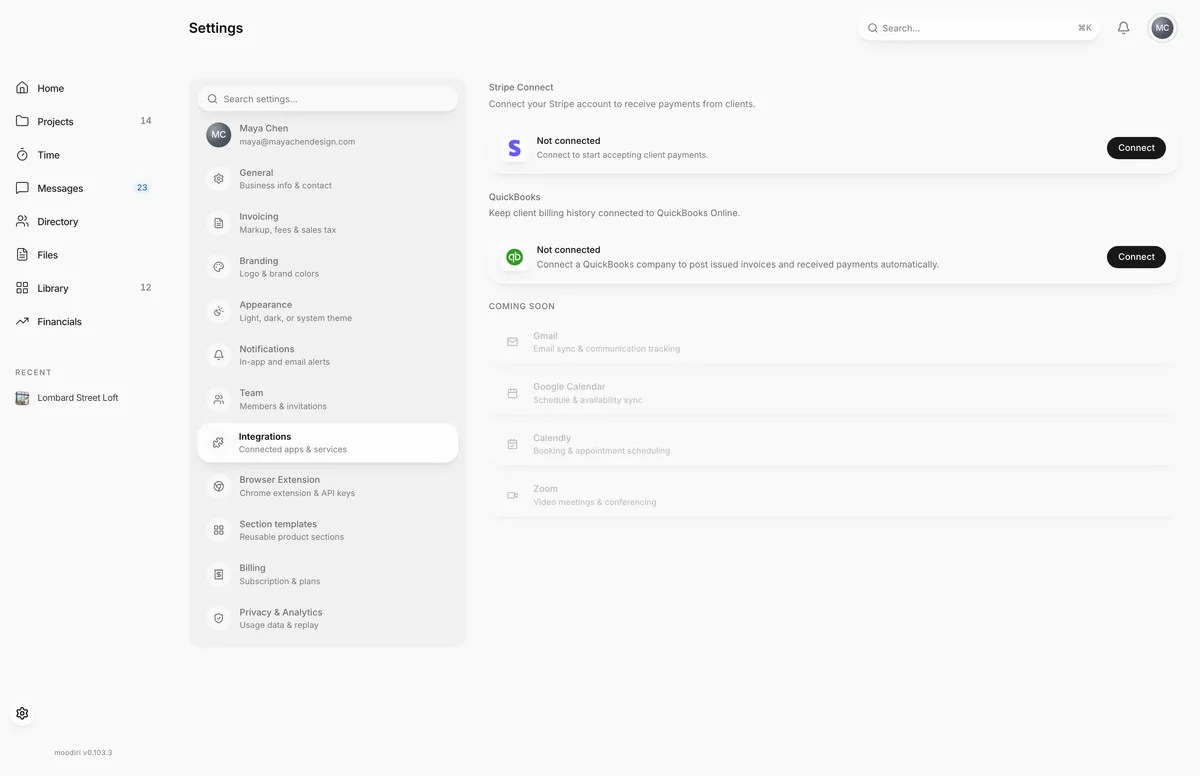
- 1Stripe Connect
- In Settings, choose Integrations in the list of sections.
- The Stripe Connect card shows where you are, here Not connected.
- Choose Connect, or Continue setup if you started before. Stripe's onboarding opens in a new tab.
Stripe account statuses
- Not connected. Connect to start accepting client payments.
- Stripe setup incomplete. You started but haven't finished. Choose Continue setup.
- Stripe account under review. Stripe is reviewing your account, usually within 1 to 2 business days.
- Stripe account connected. You can receive payments from clients. The card shows Connected, with Edit and Disconnect.
Disconnect Stripe
Choose Disconnect, then Disconnect again under Disconnect Stripe account? to confirm. You'll need to reconnect before sending invoices. Invoices that are already paid are not affected.
What happens next
- Once connected, invoices you send can be paid online, and payments show on each invoice in Moodiri.
- How processing fees are split between you and your client follows your choice in Invoicing.
Limits
- Without the Payouts permission, the card is read-only.
- Stripe's review can take 1 to 2 business days before you can take payments.
- After disconnecting, you must reconnect before sending invoices.
Questions
How do I change my bank account or business details on Stripe?
Choose Edit on the Stripe Connect card. Your Stripe dashboard opens in a new tab, where you make the change.
What happens if I disconnect?
Your Stripe account is unlinked and you'll need to reconnect before sending invoices. Invoices that are already paid are not affected.
Who pays the card fees?
You decide. Choose an option under Payment fees in Settings, Invoicing.