Products and selections · Product page
Send a product for approval or approve it directly
Ask your client to approve a single product, add it to the final selection yourself, or file it into a section.
Why use it
Some products need your client's yes; others you can decide yourself. These actions let you do either from the product, and keep a clear record of which it was: the product page and section show whether a client approved it or it was assigned directly.
When to use it
- Send to client for one product that needs sign-off on price and finish, such as a custom headboard.
- Approve directly for decisions already made, such as a replacement part or a piece your client agreed to in a meeting.
- Add to section when the product should sit beside other options for one decision.
For two or three alternatives, put them in a section and send the options together.
Before you start
- A draft product in the room. See Add a product directly.
- To send to your client: a client on the project with an email address.
Steps
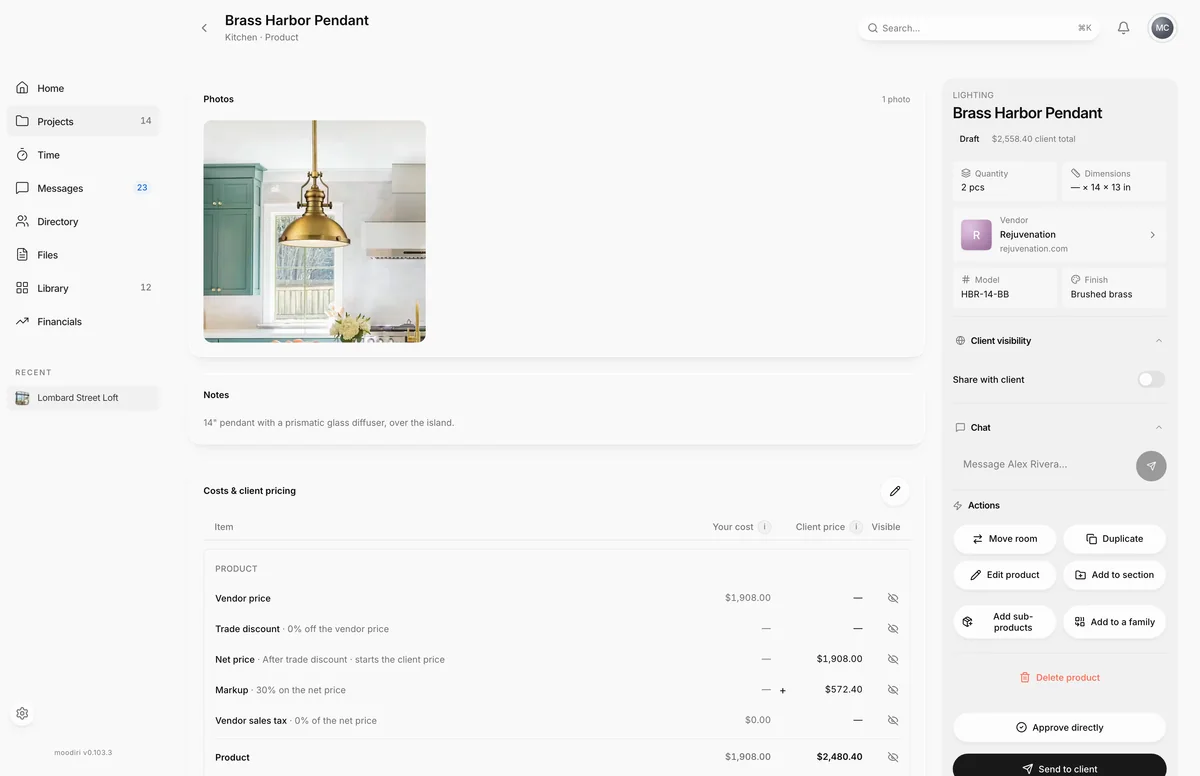
- 1Approve directly
- 2Add to section
- Open the product, here Brass Harbor Pendant, and choose Send to client at the bottom of the side panel.
- Check the product name in the confirmation, then choose Send for approval.
- To decide it yourself, choose Approve directly. Tick Also share with the client to add it to their portal.
- Choose Add to final selection. The product moves to the room's Final selection with no client round trip.
- To compare it with other options instead, choose Add to section and pick an empty section, or Create a new section.
What happens next
- Send to client: Moodiri shows Sent to client for approval. The product reads Sent for approval, then In review once your client opens it. Their answer comes back to the product.
- Approve directly: Moodiri shows Added to the final selection. The product moves to the room's Final selection, where you track ordering. See Procurement tracking.
- Add to section: Moodiri shows Added to section or New section created. Open the section to add more options.
- To take a final selection back to review, choose Move to sections. If it came from a section with several options, you choose Put all options back in review or Only this product, which removes the other options from the section.
Limits
Limits
- Sub-products are approved with their parent. Their page says that move, sections and approvals are managed on the parent.
- Add to section lists only empty sections in the room. Sections with options or out for approval manage their own options.
- While a product is with your client, Send to client shows Waiting and cannot be used again.
- A product that is an option in a section is sent from its section, not on its own.
Questions
I approved it by mistake. Can I undo that?
Yes. Choose Move to sections. Moodiri explains where the product will go back to before you confirm.
Does approving directly show it to my client?
Only if you tick Also share with the client. Approving does not change what your client can see on its own.
Next
Product sections and optionsProducts and selectionsProcurement trackingProducts and selectionsApprovals listApprovals
Was this page helpful?
Thanks, noted.