Edit project details
Change a project's photo, code, name, status, type, address, square footage, markup and who your client sees, from one dialog.
Why use it
Project details feed everything else: the code goes into invoice numbers, the address drives sales tax, the markup sets client prices, and the client-facing contact is the person your client sees and replies to. Keeping them right in one place saves fixing each invoice and email by hand.
When to use it
- The client moved the job or gave a new address. Update the address so maps and sales tax use the right location.
- You agreed a different markup. Change Default Markup % for the project.
- A teammate takes over. Change the Client-facing contact or Project manager.
- The job goes on hold. Set Status to On hold, or use Archive… › Pause project.
To add or remove clients, use Manage clients instead: Clients on a project.
Before you start
- You need to be the owner or an admin.
- Changing the client-facing contact needs the Client-facing identity permission, the project manager needs Project managers, and invoice copies need Invoice copy settings.
- Open the project from Projects.
Steps
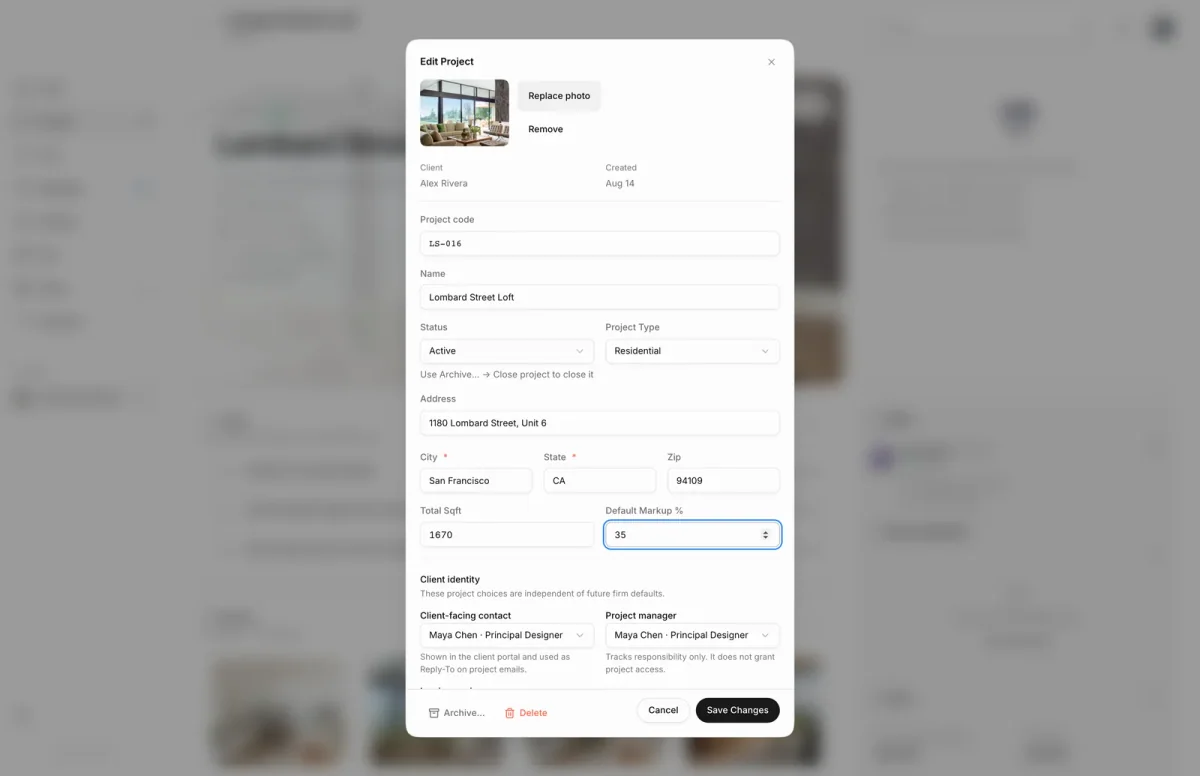
- 1Save Changes
- On the project overview, choose Edit project, the pencil at the top right of the project card.
- Change the cover photo, Project code or Name, for example Lombard Street Loft.
- Open Status and pick Active or On hold. Set the Project Type the same way.
- Update the Address, City, State and Zip. City and State can't be left empty.
- Adjust Total Sqft and Default Markup %, for example 35%. The markup applies to this project only.
- Under Client identity, choose the Client-facing contact and Project manager.
- Choose Save Changes. Cancel closes the dialog without saving.
What happens next
- Moodiri saves only what you changed and shows Project updated.
- A new code is used for new invoices and refunds. Existing ones keep their numbers, and saved invoice PDFs are refreshed with the new project number.
- A new client-facing contact appears in the client portal and receives replies to project emails.
- If sales tax is set up and you change the address of a project with an accepted rate, Sales tax shows Needs review. The accepted rate stays in use until you accept a replacement, save your own, or turn sales tax off.
Limits
- Name, project code, city and state are required.
- Status offers only Active and On hold. Completed and cancelled projects show their status here and are restored from the Archive view.
- The client is shown but can't be changed in this dialog. Use Manage clients on the project overview instead.
- Teammates you invited become selectable after they accept their invitation.
Troubleshooting
- Project code is required, Project name is required or City and state are required: fill in the missing field and choose Save Changes again.
- Choose at least one invoice-copy recipient.: you chose Choose teammates under Invoice copies without picking anyone. Pick a teammate or choose another option.
Questions
Why can't I set the status to Completed here?
Completing goes through Archive… › Close project, which reviews open invoices first. See Close a project.
Why are the contact and manager fields greyed out?
Changing them needs the Client-facing identity and Project managers permissions. Ask the firm owner to grant them.
I closed the dialog by mistake. Are my changes lost?
Moodiri asks Discard your changes? first. Choose Keep Editing to go back, or Discard.