Remove a member
End a teammate's access, either by unassigning their seat so they can come back later, or by removing them from the firm for good.
Why use it
When someone leaves, their access should end the same day, without losing a single invoice, note or approval they worked on. Removing a member closes their access straight away, moves their client and project responsibilities to someone you choose, and keeps the history intact.
When to use it
- Someone is on leave or between contracts. Choose Unassign seat. You can reactivate them later.
- Someone has left for good. Choose Unassign & delete to remove them from the firm.
To free a seat without ending anyone's access, revoke a pending invitation instead. See Manage seats.
Before you start
- You are an Owner, or an Admin unassigning a Member's seat. Only an Owner can permanently remove someone, and only an Owner can act on Admins and other Owners.
- There is another active teammate who can take over their responsibilities.
- Open Settings, then choose Team.
Steps
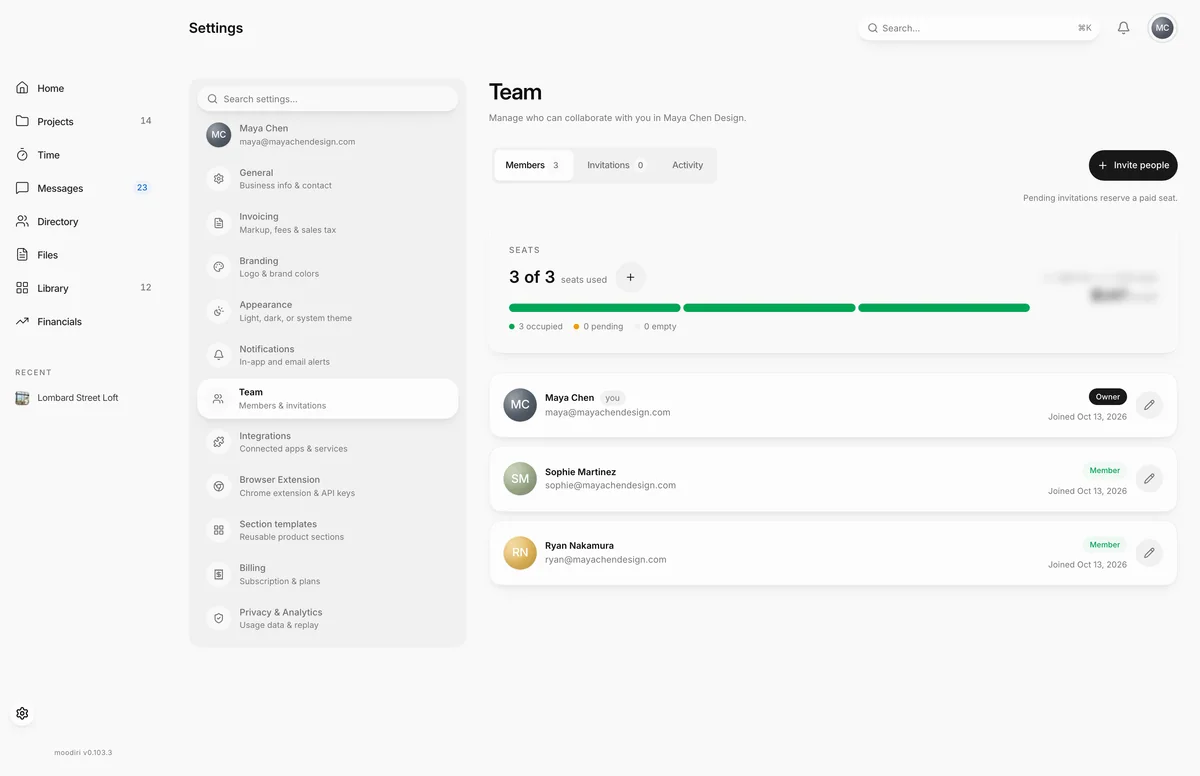
- On Team, choose the pencil button on the teammate's row, here Ryan Nakamura.
- Choose Unassign seat to pause their access. They move to Without a seat and can be reactivated later.
- Choose Unassign & delete to remove them from the firm for good. Only an Owner sees it.
- For a pause, confirm with Unassign seat. Their access stops at once and the seat stays on your plan, empty.
- For a permanent removal, confirm with Remove member. A removed teammate can't be reactivated.
Reassign their responsibilities
If the teammate is the client-facing contact or project manager on any project, or is the firm's default for either, Moodiri asks you to pick a replacement before access changes:
- Reassign client-facing responsibilities. Pick the New client-facing contact.
- Reassign project management. Pick the New project manager.
Then choose Unassign and reassign or Remove and reassign. Reassigning client-facing work needs the Client-facing identity permission, and project management needs Project managers. The owner has both.
Teammates with Google Calendar connected
A teammate who connected Google Calendar for time tracking must be disconnected before they can be permanently removed. If you have the Time tracking permission, Moodiri offers Disconnect Calendar & continue. Their historical time entries remain under their name. Without that permission, unassign their seat for now and ask the teammate, an owner, or a time admin to disconnect it. See Google Calendar sync.
What happens next
- Their access ends immediately. You see a confirmation that they were deactivated or removed.
- An unassigned teammate moves to Without a seat, where Reactivate brings them back when a paid seat is free.
- A removed teammate leaves the list and can't be reactivated.
- Their seat stays on your plan as an empty seat.
Limits
- You can't remove or unassign your own account.
- If the person is a client-facing contact or project manager, you must pick who takes over.
- Historical project and billing records remain intact.
- A firm must keep at least one active Owner.
- Permanent removal waits until the teammate's Google Calendar is disconnected.
Troubleshooting
- Invite or reactivate another teammate before changing this member's access. There is nobody to hand their work to. Add or reactivate a teammate first.
- Calendar cleanup is still in progress. Wait a few seconds and try again.
Questions
What's the difference between unassigning and removing?
Unassigning pauses access and keeps the person under Without a seat, so you can reactivate them later. Removing is permanent; a removed teammate can't be reactivated.
Do I get the seat back?
The seat becomes empty but stays on your plan. Reduce the seat count on Billing if you won't invite a replacement.
Will their past work disappear?
No. Historical project and billing records remain intact and stay under their name.