Invite people
Send a teammate an email invitation to join your firm, with the role and access they need from day one.
Why use it
Sharing one login means nobody knows who changed what, and you cannot take access away from one person without changing it for everyone. Inviting each teammate gives them their own sign-in, their own name on their work, and only the access their role needs.
When to use it
- A new hire. Invite them as a Member for day-to-day project work.
- Someone to help run the firm. Invite an Admin and give them, for example, billing or integrations permissions.
- A returning teammate. If they still appear under Without a seat, choose Reactivate on their row instead of inviting them again.
Before you start
- You are the owner or an admin. Only the owner can invite Admins.
- There is an empty paid seat. If every seat is taken, add one first in Seats, or revoke a pending invitation.
- Open Settings, then choose Team.
Steps
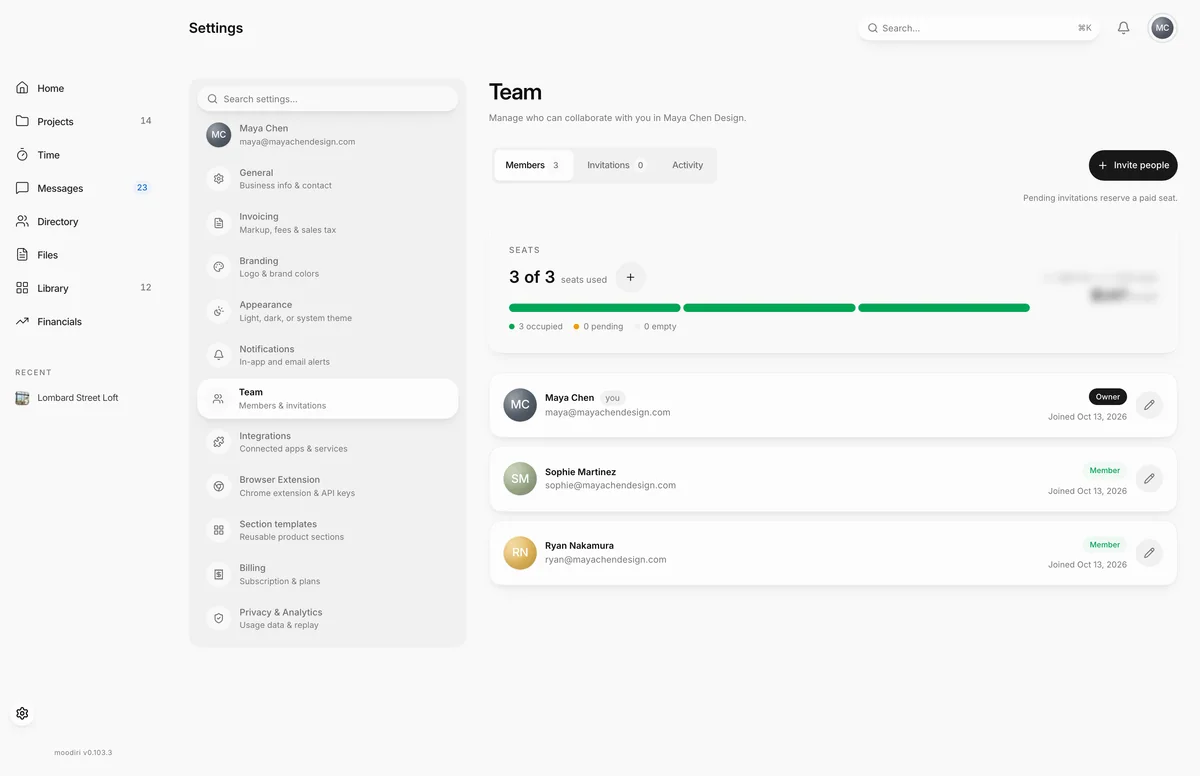
- On Team, choose Invite people to open the invitation form.
- Add a photo for your teammate, or tick the box below to let them upload their own when they join.
- Enter their First name and Last name, for example Jordan Lee.
- Enter the work email the invitation goes to. They sign in with this address.
- Pick Member for project work or Admin to help run the firm. Only an Owner sees Admin.
- For an Admin, choose Standard, Full access or Custom. With Custom, tick each permission they need.
- Choose Send invitation. It stays unavailable while every paid seat is taken, as it is here.
Choose the role
Member is for day-to-day project work. Admin helps run the firm. When an Owner picks Admin, three access levels appear:
- Standard. Every capability included in the Admin role, with nothing extra.
- Full access. Adds every permission the owner can delegate.
- Custom. Pick individual permissions, such as Firm settings, Subscription billing, Payouts or Integrations. Choose at least one.
You can change a teammate's role or permissions later. See Roles and admin permissions.
What happens next
- Your teammate gets an email invitation, and you see Invitation sent to their address.
- The invitation appears under Invitations with its expiry date, and one seat shows as pending.
- When they accept, they appear under Members and can be picked as a client-facing contact or project manager.
- If they don't accept in time, the invitation expires and the seat is free again. Choose Resend to send a fresh one.
Limits
- Inviting needs an empty paid seat. Pending invitations count as used seats.
- Invitations expire after 7 days.
- Teammate photos: JPEG, PNG or WebP, up to 5 MB.
- First and last names can be up to 100 characters each.
- You can send up to 10 invitations a minute.
- Only an Owner can invite an Admin.
Troubleshooting
- All paid seats are occupied. Add a seat or revoke a pending invitation first. Send invitation stays unavailable until a seat is free.
- This person already has a pending invitation. Resend it instead. Open Invitations and choose Resend.
- This person already belongs to your firm. Reactivate them from Members instead. Find them under Without a seat and choose Reactivate.
- This email already belongs to a Moodiri account in another firm. Use a different email address for this teammate.
Questions
My teammate didn't get the email. What now?
Open Invitations on the Team page and choose Resend on their row. Check the address is right first.
Can I cancel an invitation?
Yes. Choose Revoke on the invitation. That frees the seat it was holding.
Can I invite someone who already uses Moodiri at another firm?
No. An email address can belong to only one firm. Ask them to use a different work address.