Projects · Project tasks
Create a task
Add a task to a project with an owner, deadline and priority, then break it into subtasks and link what it depends on.
Why use it
Project to-dos scattered across sticky notes, emails and people's heads get missed, and nobody knows who was meant to chase the vendor. A task puts the work, its owner and its deadline on the project, so the whole team can see what is next and what is late.
When to use it
- Follow-ups after a meeting. One task per action, each with an owner.
- Work that depends on something else. Link it to the task that must be done first, so it shows as blocked until then.
- Bigger jobs. Break a task such as Kitchen lighting into subtasks for each fixture.
For notes with no owner or deadline, use a project note instead.
Before you start
- Project tasks must be on for your firm. Anyone on the team can create tasks.
- The project must be active or on hold. Tasks on archived, cancelled or completed projects are read-only.
- Open the project, then choose View all on its Tasks card.
Steps
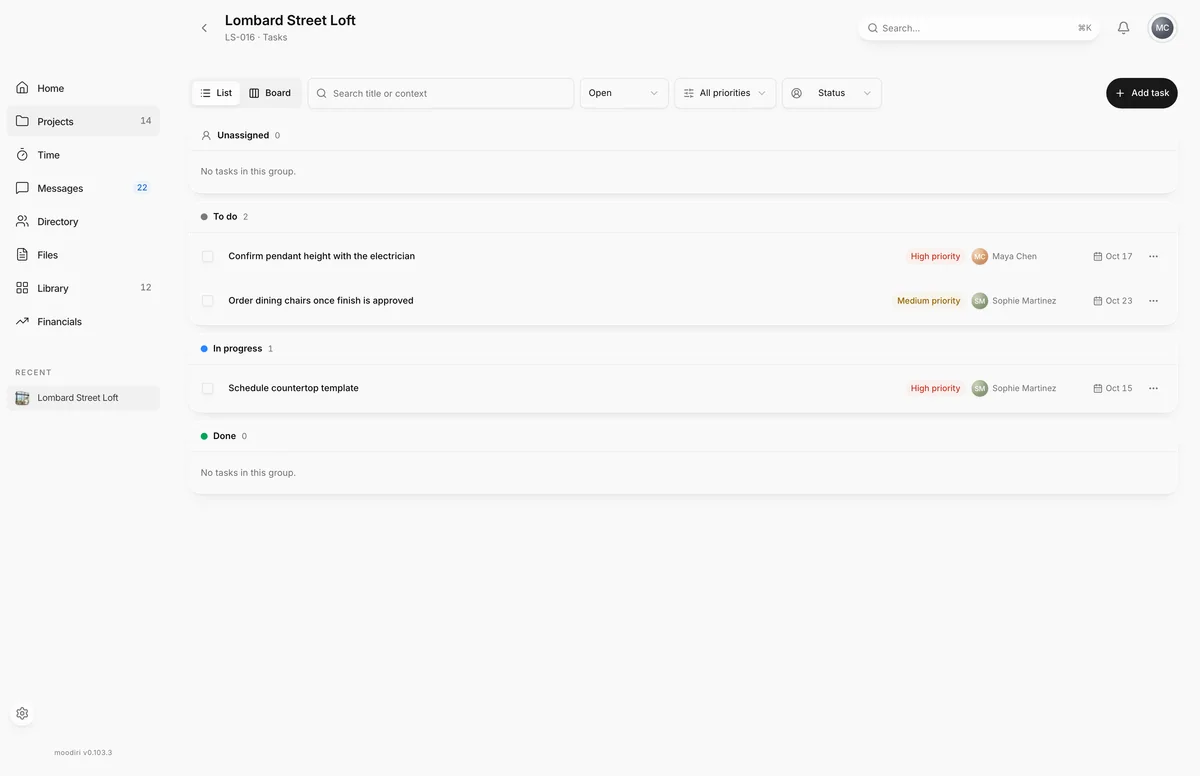
- On the project's tasks page, choose Add task.
- Enter a Title, for example Confirm pendant lead time, and optional Context such as Kitchen island.
- Set the Status, Priority, Owner and Deadline. All are optional; status starts at To do.
- Choose Create task. It appears in the list under its status.
- Open a task, type a Subtask title under Actionable items, and choose + to add it.
- Under Dependency, choose Add dependency to link a task that must be done first.
- Add notes or edit details, then choose Save changes.
What happens next
- The task appears in the list or on the board, under the current view and grouping.
- The owner can find it under My tasks.
- A task with an unfinished dependency or a blocker shows as blocked and can't be marked done until that is resolved. A task with open subtasks can't be completed until they are done.
- Changes to the task are recorded in its Activity.
Limits
Limits
- Titles and context are up to 240 characters.
- One level of subtasks, and up to 100 active subtasks per task.
- Tasks are read-only when the project is archived, cancelled, deleted or completed.
Troubleshooting
- Task title is required.: enter a title before choosing Create task.
- That dependency would create a cycle.: the task you picked already depends on this one. Choose a different task.
- This task changed in another session. Refresh and try again.: a teammate edited it at the same time. Reload the task and make your change again.
Questions
Can a subtask have its own subtasks?
No. Tasks support one level of subtasks. For bigger pieces of work, create separate tasks and link them with dependencies.
Can I assign a task to a teammate who hasn't joined yet?
No. Choose an active teammate, or leave the task unassigned until they join.
Do deadlines shift with time zones?
No. A deadline is a calendar date and shows as the same day for everyone.
Next
Was this page helpful?
Thanks, noted.