Record a manual payment
Record a check, Zelle, wire, ACH, card, cash or other payment received outside Moodiri, and link it to an invoice or hold it as credit.
Why use it
A check in the mail or a Zelle notification doesn't update anything by itself. Recording it puts the money on the right invoice, updates the balance and your reports, and keeps the reference and proof in one place for when someone asks.
When to use it
- A client paid by check, transfer or cash. Link it to the invoice it pays.
- A client paid in advance, with no invoice yet. Choose Not linked — add to overpayment credit and apply it later. See Apply credit to an invoice.
- You took a card payment on your own terminal. Record it as Card so the invoice shows as paid.
For a single check that covers several invoices, see Record one check that pays several invoices. For a retainer, use Request a retainer instead.
Before you start
- Only the owner and admins can record payments.
- Have the amount, the date you received it, and the check number or confirmation to hand.
- Open the invoice from Invoices, then choose Record payment in Actions.
Steps
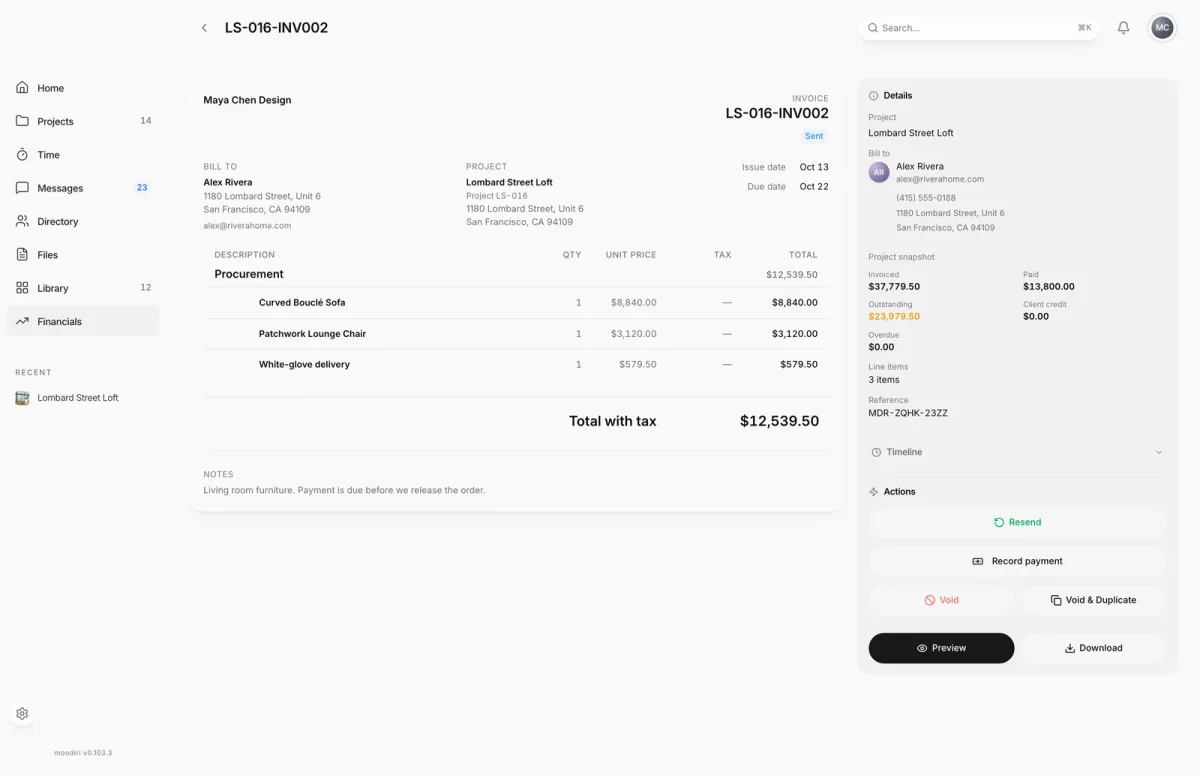
- 1Record payment
- Open the invoice, here LS-016-INV002 with $12,539.50 due, and choose Record payment.
- Enter the Amount received in US dollars, for example a $5,000.00 deposit by check.
- Choose the Payment method, such as Check, Zelle or ACH / bank transfer, and the Date received.
- Add a Reference, such as a check number, confirmation or transaction ID.
- Check Link to an invoice. Opened from an invoice, it is already linked; choose Not linked — add to overpayment credit to hold the money as credit instead.
- Optionally add a Description, such as 50% deposit, living room, line items and Proof of payment.
- Choose Record $5,000.00 to save it, or Record & send receipt to also email your client a receipt.
Line items on a payment
Choose Add line items (hours, rate) to break the payment down, for example by phase. Each row has a description, quantity and rate. Choose Use total … as amount to copy the rows' total into Amount received. To note a Phase and Deliverables, choose Add phase & deliverables.
What happens next
- The confirmation shows the amount, method and date, and whether the invoice is paid in full or has a balance remaining.
- Any extra is shown as Overpayment credit, available for this client's future invoices.
- Choose Send receipt to email your client a receipt. See Send a receipt or the paid invoice.
- If the invoice was still a draft and is now paid, you see Invoice marked paid. Nothing has been sent to the client yet, so you can choose Send paid invoice or keep it internal.
- You can edit or void the payment later from its actions menu.
Limits
- Methods: Check, Venmo, PayPal, Zelle, Wire transfer, ACH / bank transfer, Card, Cash or Other.
- The amount must be at least $0.01 and no more than $9,999,999.99.
- The date received can't be in the future.
- Reference up to 120 characters.
- Up to 100 line items per payment.
- Proof: PDF, JPG, PNG, WebP, GIF or TIFF, up to 100 MB.
Troubleshooting
- Payment is more than the invoice balance. Choose Limit and record payment to record only the balance, Add difference to overpayment to keep the extra as client credit, or Go back to fix the amount.
- Payment saved, but the attachment didn't upload. Add it later from the payment. Open the payment's actions, choose Edit payment, and choose Add proof.
- Date received can't be in the future. Pick today or an earlier date.
Questions
Which payment methods can I record?
Check, Venmo, PayPal, Zelle, Wire transfer, ACH / bank transfer, Card, Cash and Other.
I recorded a card payment here. Will Stripe process it?
No. Recording a payment only logs money you already received. It never charges your client. Use Card for card payments taken outside Moodiri.
Can I record a payment from the project instead?
Yes. Record payment is also on the project's invoices and on Financials. From Financials you pick the project first, then optionally the invoice.