Record one check that pays several invoices
Split a single check or transfer across a client's open invoices in one step. Anything left over becomes client credit.
Why use it
Clients often pay several invoices with one check. Recording it as separate payments means splitting the amount by hand and entering the same check number again and again. Recording it once keeps the check as one payment, pays each invoice, and leaves a clear trail of what the check covered.
When to use it
- One check for several invoices. For example, a deposit invoice and a purchasing invoice for Lombard Street Loft paid together.
- A transfer that covers a statement. Tick every invoice the client listed.
- A round number that is a little too much. The extra is kept as client credit.
For a payment against a single invoice, see Record a manual payment.
Before you start
- Only the owner and admins can record payments.
- The client needs more than one open invoice.
- Open one of the invoices from Invoices.
Steps
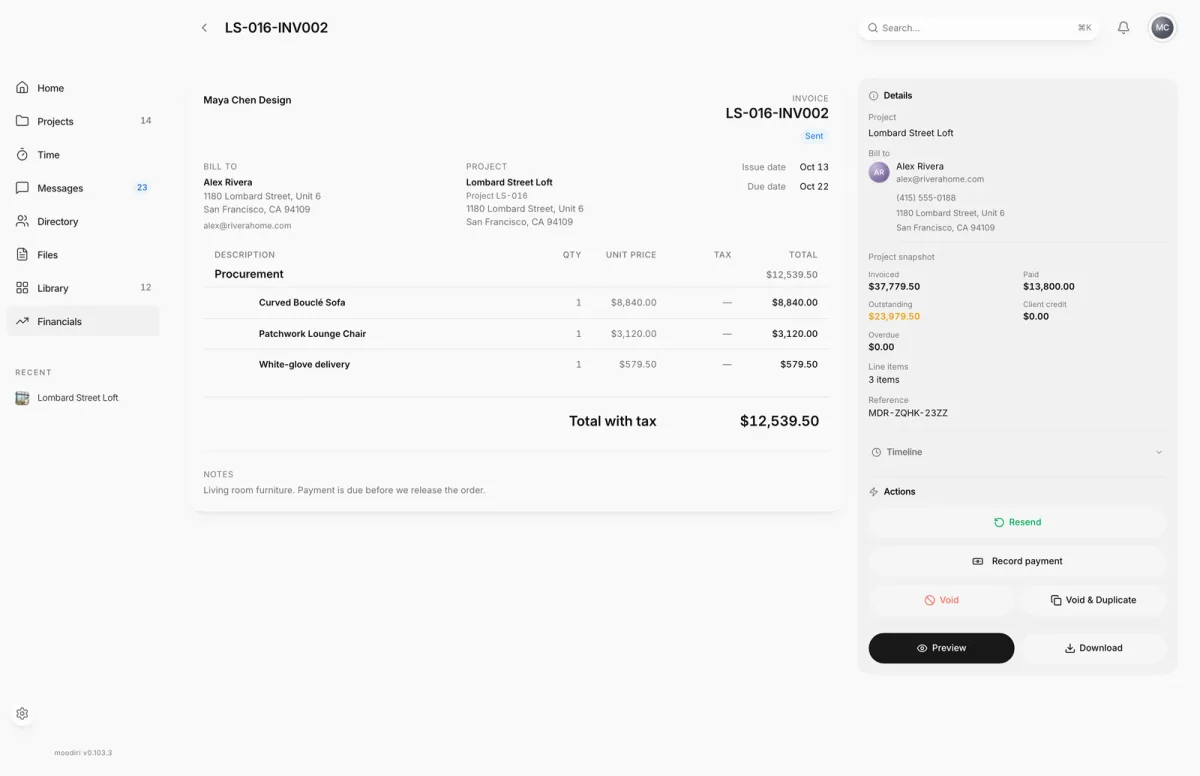
- 1Record payment
- Open one of the invoices the check pays, here LS-016-INV002, and choose Record payment.
- Enter the full check amount as the Amount received, for example $23,979.50.
- Tick This payment covers more than one invoice.
- Under Apply to invoices, tick each invoice the check pays. Amounts fill in oldest due date first; change any of them if the client told you otherwise.
- Choose the Payment method and Date received, and add the check number as the Reference.
- Choose Record $23,979.50 to save one payment split across the invoices.
How the check is saved
- The check is saved as one payment on the first invoice. The rest is applied to the other invoices from that payment's credit.
- Anything not applied stays as client credit for a future invoice. See Overpayments and client credit.
- Every invoice the check pays is dated with the check's received date.
- The first invoice's payment row says what the rest of the check paid.
To go back to a single invoice, choose Apply to one invoice.
What happens next
- The confirmation shows Applied across the number of invoices, and any client credit.
- Each invoice paid in full is marked Paid. Others show their remaining balance.
- Choose Send receipt to email your client a receipt for the check.
Limits
- Choose at least two and no more than 25 invoices.
- Each amount must be in whole cents and no more than that invoice's outstanding balance.
- The amounts you apply can't add up to more than the check.
- Only invoices for the same client can share a check.
Troubleshooting
- An allocation exceeds its invoice's outstanding balance. Lower that invoice's amount.
- Applied amounts exceed the payment amount. The amounts add up to more than the check. Lower one, or correct the Amount received.
- Payment is more than you applied. Choose Add difference to overpayment to keep the rest as client credit, or Go back and apply more.
Questions
Why don't I see "This payment covers more than one invoice"?
The option only appears when this client has more than one open invoice, and you started from one of them. Open invoices are ones that are sent, viewed or overdue, so a draft doesn't count.
Can the invoices be on different projects?
Yes, as long as they belong to the same client. Invoices from another project show the project name under the invoice name.
How does this appear in QuickBooks?
QuickBooks receives one payment linked to every invoice the check pays.