Edit, correct, reverse or void a payment
Fix a recorded payment: edit its details, lower its amount, reverse a bounced check, or void it, while keeping the full history.
Why use it
Recorded payments are sometimes wrong: a typo in the amount, the wrong date, a check that bounced two weeks later. Deleting and re-entering hides what happened. Correcting the payment fixes the balance and keeps a dated record of every change, so your books and your client's statement agree.
When to use it
- A typo in the details. Use Edit payment.
- The payment was recorded for too much. Use Correct payment… and remove the difference or keep it as credit.
- A check bounced or a transfer was returned. Use Reverse amount.
- The payment should never have been recorded. Reverse the full amount, or choose Void on the payment in Financials.
Before you start
- Only the owner and admins can change recorded payments.
- Open the invoice from Invoices. Each payment under Recorded payments has an actions menu.
Steps
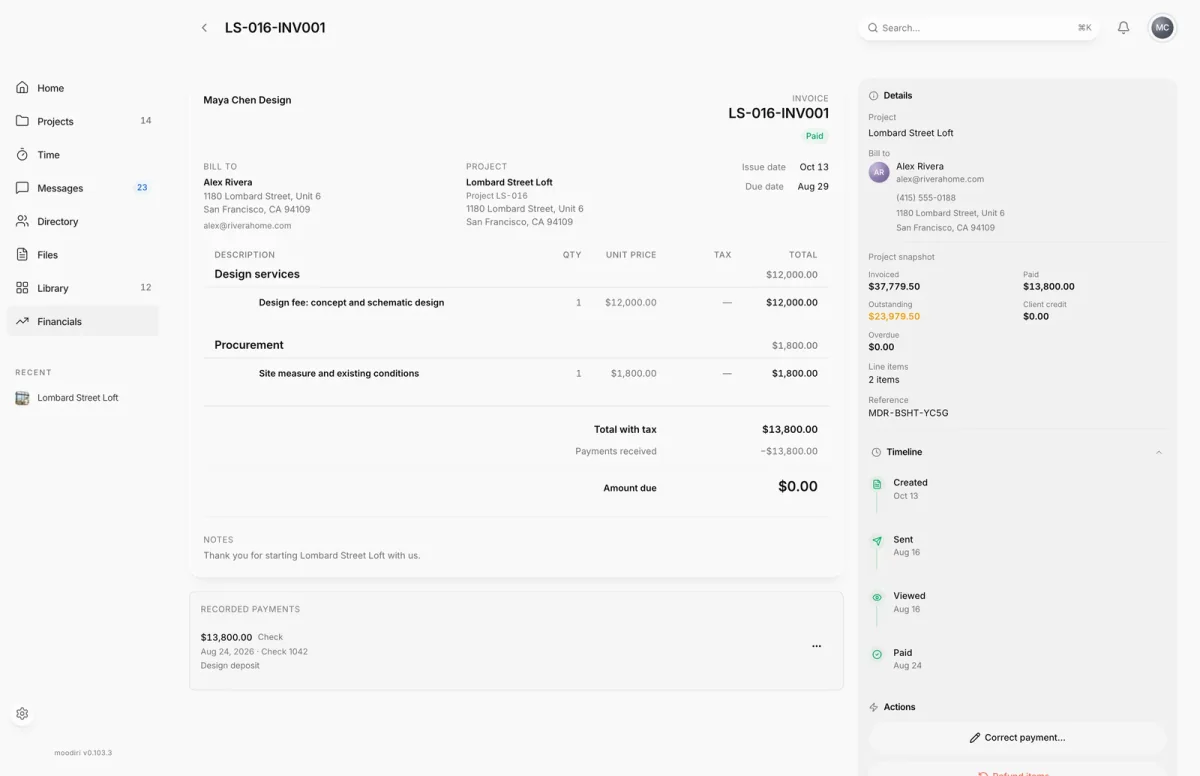
- 1Correct payment
- On the paid invoice, here LS-016-INV001, open the payment's actions under Recorded payments and choose Edit payment.
- Fix the amount, date, method, reference or description, then choose Save changes.
- To lower a payment that was recorded for too much, choose Correct payment… in Actions.
- Pick the payment from the list, here $13,800.00 · Check 1042. Applied client credit is listed there too.
- Enter the Corrected payment amount, for example $12,800.00 instead of $13,800.00.
- Choose what happens to the difference, Remove the difference or Add to client credit.
- Pick a Reason, such as Entered in error, add a note if it helps, and choose Save correction.
- To take money back off an invoice, such as a bounced check, choose Reverse amount from the payment's actions instead.
Reasons
When you correct, reverse or void a payment, pick a Reason: Entered in error, Bounced or returned, Recorded for too much, Refunded to client, Duplicate or Other. Add a Note for details, for example Check bounced, bank returned $400 on Jun 18.
Correct applied client credit
If client credit was applied to the invoice, it appears in the Correct payment… list as Client credit. Choose it to open Correct applied credit, lower the amount, and return the difference to the client's available credit.
Void a payment
On Financials, open the payment's actions in the payments list and choose Void. Void this payment? shows what will happen: the amount is removed from the invoice, any overpayment credit from it is voided, and the invoice reopens if a balance remains. Choose a reason and Void payment, or Keep to cancel.
What happens next
- The invoice balance updates. If a balance remains, a paid invoice reopens.
- The change is added to the payment's History in Edit payment. See Payment change history.
- Proof of payment that was shared with your client is hidden from their portal when the payment is fully reversed.
- Your Financials report reflects the change.
Limits
- Reversals are blocked while a payment is processing and while a payment cleanup runs. They unlock once it finishes.
- Once an invoice has been corrected by an item refund, its recorded payments are permanently read-only.
- A corrected amount must be lower than the current payment.
- Notes are up to 1,000 characters.
Troubleshooting
- A payment is still processing. Reversals unlock once it settles. Wait for the bank payment to settle.
- This invoice has been corrected. Its recorded payments are permanently read-only. Make changes on the replacement invoice instead.
- Enter an amount lower than the current payment. A correction can only lower the amount. To raise it, use Edit payment.
Questions
What's the difference between correcting and reversing?
Correct when the payment was recorded for too much: you lower it and decide what happens to the difference. Reverse when money really went back, like a bounced check: the amount comes off the invoice and the balance reopens.
Does anything get deleted?
No. Edits, corrections, reversals and voids are all kept in the payment's history, with the date and amount.
Can I reverse an online card payment here?
No. These actions are for payments you recorded yourself. Refunds of card payments are made in Stripe, and Moodiri picks them up.