Time tracking · Timesheet approvals
Approve, return or reopen a week
Approve a submitted timesheet to lock it, return it with feedback when something needs fixing, or reopen an approved week.
Why use it
Approving timesheets is your check that the hours are right before they are billed. Once approved, a week is locked, so invoices and reports are built on hours that cannot quietly change.
When to use it
- Approve when the hours and projects look right.
- Return for changes when an entry is on the wrong project, missing, or looks off.
- Reopen week when an approved week needs a late correction.
Before you start
- You need to be the owner, an admin with the Time tracking permission, or the person's assigned approver.
- Set approvers in People and approvers.
Steps
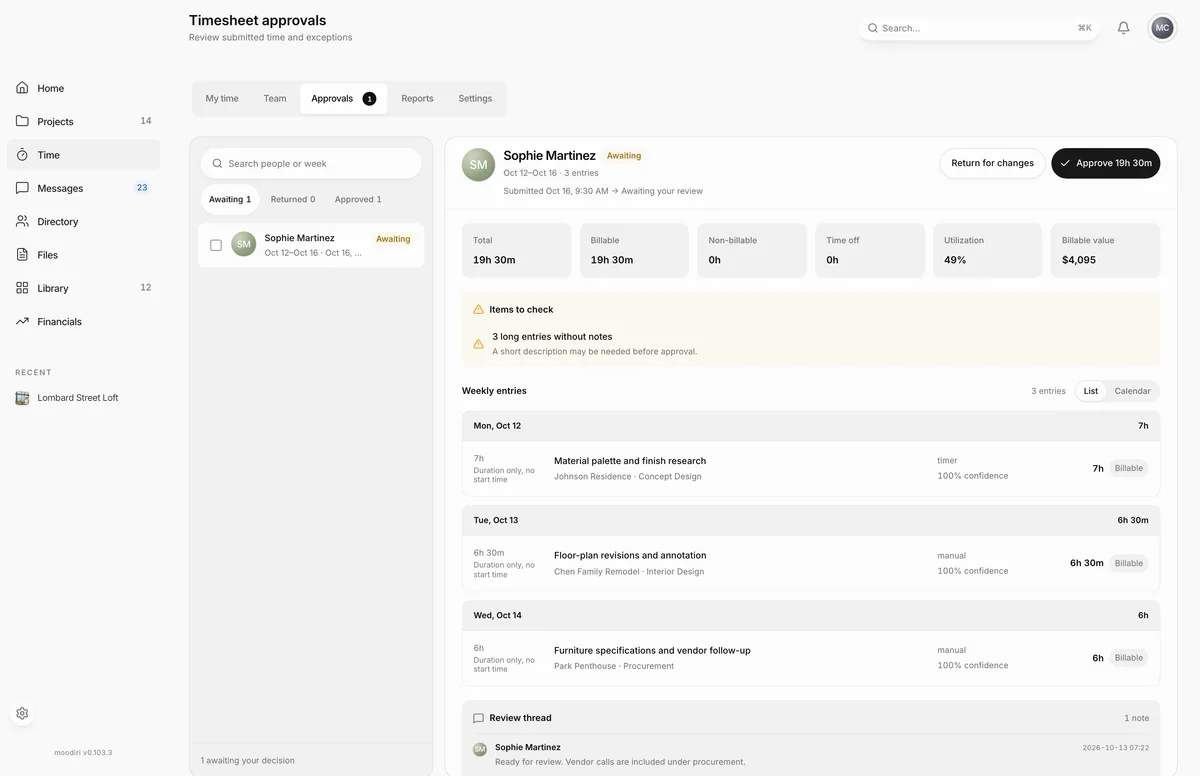
- Open Time, then Approvals. The Awaiting tab lists weeks waiting for your decision.
- Choose a teammate's week in the queue to open it on the right.
- Check Items to check, such as long entries without notes, before you decide.
- Choose Approve with the week's hours, for example Approve 19h 30m. The week locks and its billable time is ready to invoice.
- To send it back, choose Return for changes, write your Feedback, and choose Return for changes again.
- To approve several weeks at once, tick them in the queue and choose Approve selected.
- To unlock an approved week, open it from the Approved tab and choose Reopen week.
What happens next
- Approve: the week shows Approved and is locked. Its billable time appears in Unbilled time.
- Return for changes: the week shows Returned and the person sees your feedback under Week returned with comments. They fix it and choose Resubmit.
- Reopen week: the week unlocks so it can be changed and submitted again.
- The person is notified when you approve or return their week.
Limits
Limits
- Nobody approves their own week through Approve. Self-approval happens only on submit.
- Feedback when returning a week must be between 2 and 1,000 characters.
- Only the owner and admins with the Time tracking permission can reopen an approved week here.
Questions
Can I edit someone's entries before approving?
Return the week with comments instead. The person fixes their own entries and resubmits, so the record shows who changed what.
What happens to billing when I reopen a week?
The week goes back to the person to change. Its time needs approving again before it is ready to invoice.
Next
Was this page helpful?
Thanks, noted.