Edit, save as new, or archive a library family
Change a saved family's name, children and quantities, keep a variation as a new configuration, or archive one you no longer use.
Why use it
Your standard bathroom vanity set changes over time: a new tap, one more drawer unit, a mirror you stop using. Editing the saved family keeps the recipe current, so the next project gets the right products in the right quantities without rebuilding it by hand.
When to use it
- The recipe changed. Swap a child, change a quantity or reorder the list.
- A variation. Use Save as new for a second version, such as a double vanity, and keep the original.
- Retire it. Archive a family your firm no longer specifies.
Before you start
- Everyone on your team (owner, admins and members) can edit, save as new and archive.
- Open Library, choose Products, then Families, and choose View family.
Steps
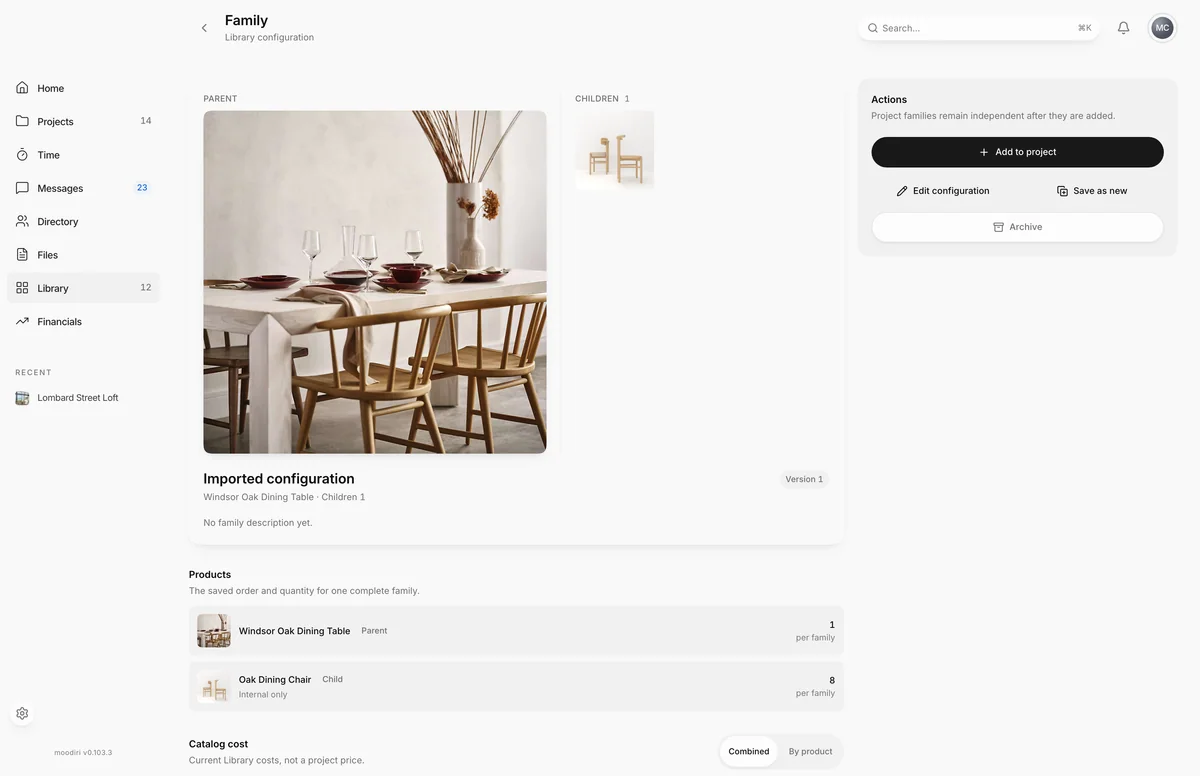
- On the saved family's page, choose Edit configuration. Save as new opens the same editor for a copy.
- Update the Configuration name, up to 120 characters. Your team picks families by this name.
- Add an optional Description, for example Windsor table with oak dining chairs.
- Set Parents per family, the number of parent products in one complete family.
- Under Add a child, find a Library product to add it to the family. Remove a child with its bin.
- For each child, set its role and its quantity per family, for example 6 Oak Dining Chairs. Use the arrows to reorder.
- Choose Share all with client or Make all internal to set which children your client sees.
- Choose Save changes, or Save new configuration when you are saving a copy.
Archive a family
Choose Archive, then Archive again to confirm. The configuration is no longer available to add or update. Families already added to projects do not change.
When someone else saved first
If a teammate saved the same configuration while you were editing, you see A newer version is available. Your edits are kept. Choose Reload latest to start again from their version, or Save as new to keep your edits as a separate configuration.
What happens next
- You see Configuration updated (or New configuration saved) and return to the family's page.
- The Version badge goes up by one.
Limits
- Configuration name is required, up to 120 characters. Description is up to 2,000 characters.
- At least one child and up to 100.
- Parent and child quantities are whole numbers from 1 to 10,000.
- The parent product can't be changed in the editor. To build around a different parent, save it from that product's family in a project.
Troubleshooting
- Family limit reached: this configuration already has 100 children. Remove a child before adding another.
- A configuration needs at least one child. The last child cannot be removed. Add another first, or archive the family.
Questions
Will editing change families already in my projects?
No. Changes update the Library configuration only. Families already in projects stay exactly as they are.
Can I change the parent product?
No. The parent is read only in the editor. To build a family around a different parent, save it from that product's family in a project.