Client portal (designer side) · Intake and brief question flows
Create a question flow
Build a branching questionnaire for your clients: add questions, set their types, and send each answer to the right next question.
Why use it
A good brief asks different questions for a kitchen than for a nursery, and skips what does not apply. A question flow does that for you, so clients answer only what matters and you get consistent briefs for every room.
When to use it
- A brief per room type. A Kitchen brief that asks about cooking habits and appliances.
- Follow-up questions. Ask about the children's ages only if the client says children use the room.
Before you start
- Anyone on your team can create flows.
- Open Question flows. From a space's Brief tab, Create your first flow takes you there.
Steps
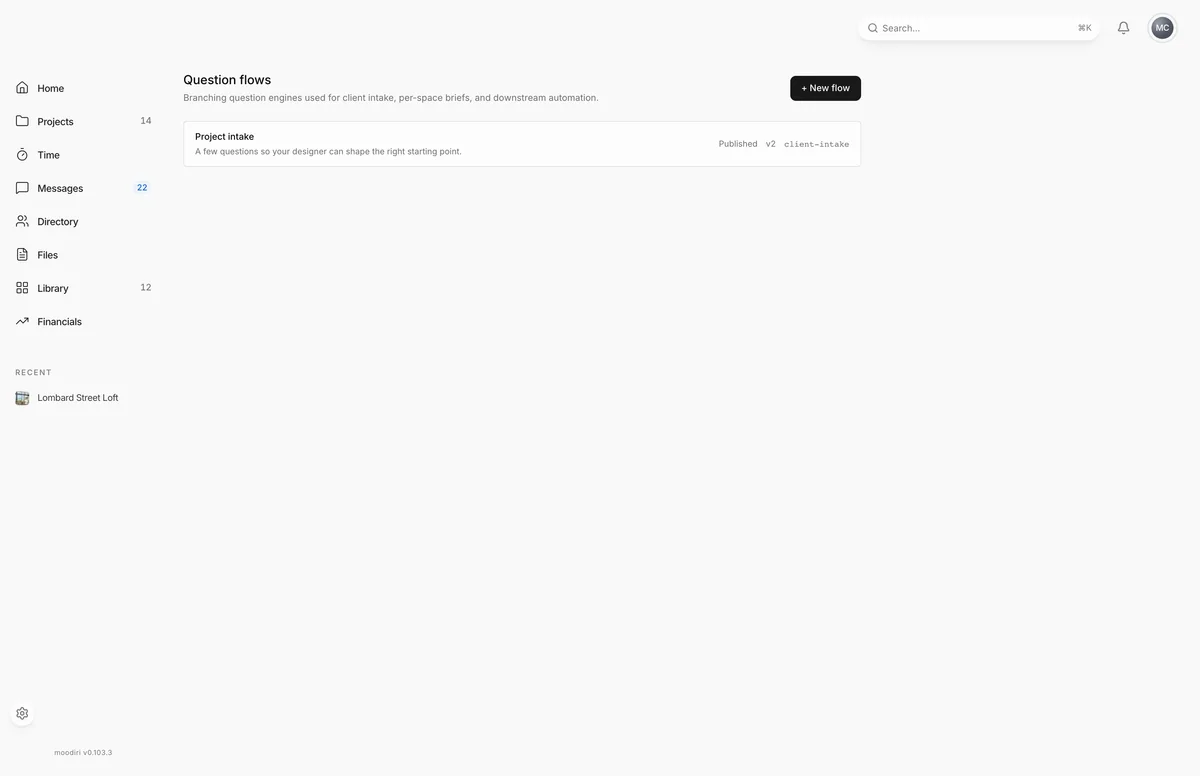
- On Question flows, choose + New flow.
- Replace Untitled flow with a name your team will recognise, such as Kitchen brief.
- Under Question types, choose a type to add a question, such as Short text or Single choice.
- Select the question and fill in its Prompt, an optional Description, and whether it is Required.
- Set the type's options, such as the choices for a choice question or the formats for a date.
- Under Edges from this question, choose Edge, then pick where it Goes to and the Condition.
- Choose Save.
Question types
- Short text and Long text: free text. Short text can be checked as an email, phone or URL, and given a maximum length.
- Number: with an optional minimum, maximum, unit (such as sqft) and Integers only.
- Single choice and Multi choice: a list of options with a display label each.
- Date / time: a Date, a Date range or a Time.
- File upload: photos or files, with the file types, how many files and the maximum size you allow.
Branching
Each edge goes from one question to another question, or to End flow. Its Condition is one of:
- Always (unconditional): always go there next.
- When answered: go there once the question has an answer.
- When equals…: go there when the answer matches the value you choose.
What happens next
- You see Saved. The flow stays in Draft until you publish it.
- When it is ready, publish it and attach it to a space.
Limits
Limits
- Question types include text, number, choice, upload, date, date range and time.
- New flows start as Untitled flow in draft.
- Only drafts can be changed. Once published, a flow is read only.
Questions
How do I make a question appear only for some answers?
Add an edge from the earlier question with When equals… and the answer that should lead to it. Add another edge for the other answers.
What does Priority on an edge do?
When more than one edge could apply, the one with the lower number is checked first.
Next
Publish and attach a question flowClient portal (designer side)Intake and brief question flowsClient portal (designer side)
Was this page helpful?
Thanks, noted.